SettingsMembers
Reference for Settings > Members: the Super admin, Admin and Viewer roles, team access, MFA status, invitations, and who can change access.
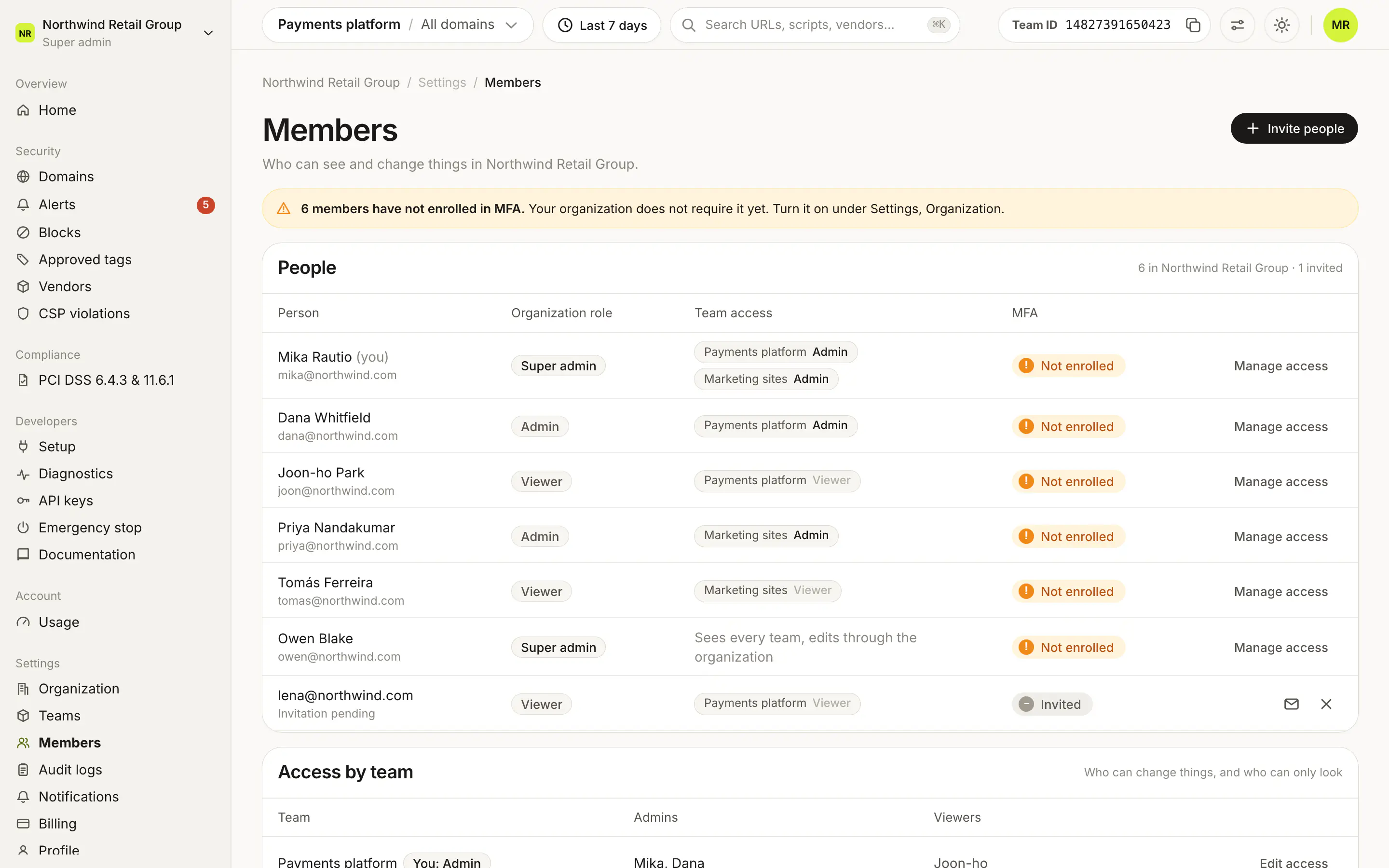
Settings > Members lists everyone in your organization with their role, the teams they can reach and whether they use MFA. There are three roles: Super admin, Admin and Viewer. Super admins invite people, change roles and remove access here. Everyone else in the organization can open the page and see it read-only.
What does the People table show?#
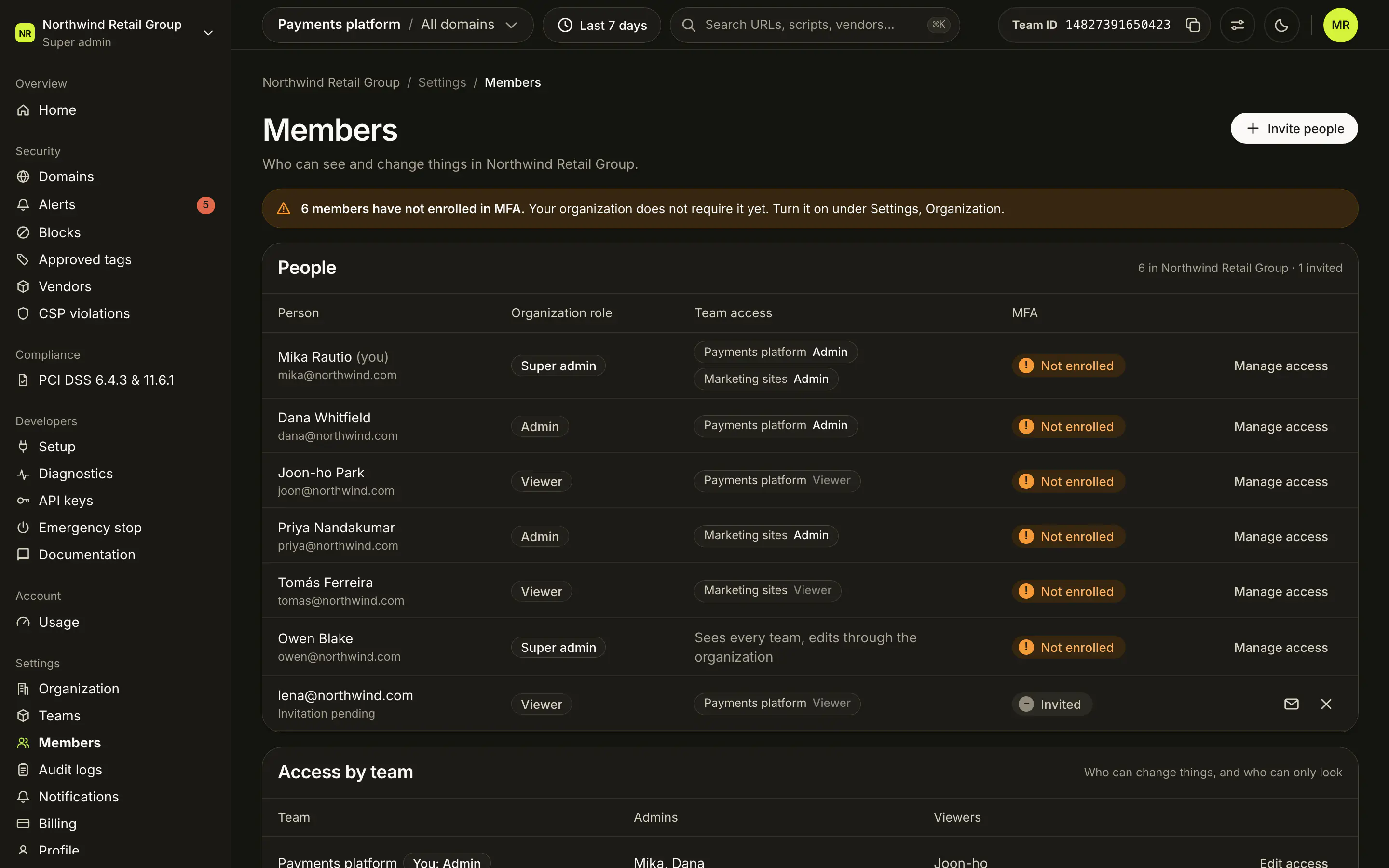
The People card counts the people in the organization and any pending invitations. Each row is one person or one invitation.
| Column | What it shows |
|---|---|
| Person | Name and email. Your own row says "(you)". An invitation shows the email and "Invitation pending". |
| Organization role | Super admin, Admin or Viewer, plus a Billing tag for an Admin who can manage billing. |
| Team access | One chip per team with the role in that team. A Super admin with no team role reads "Sees every team, edits through the organization". Otherwise "No team access", or "No team yet" for an invitation. |
| MFA | Enrolled, Not enrolled, or Invited for a pending invitation. |
| Actions | Manage access on people, Resend invitation and Revoke invitation on invitations. Anyone who is not a Super admin sees "View only". |
What do the roles mean?#
| Role | What it can do |
|---|---|
| Super admin | Everything: every team, billing, members and settings. |
| Admin | Changes things in the teams they are given. |
| Viewer | Read only in the teams they are given. |
An Admin can also have Can manage billing: plans, payment methods and invoices for the organization. Billing is not a separate role. It shows as Admin with a Billing tag, and it can be held without any team access.
A person with Admin in one team and Viewer in another shows as Admin, their strongest role. The Team access chips show the role in each team.
What does Access by team show?#
The Access by team card lists each team with who can change things and who can only look:
- Team: the team name, with your own role in it ("You: Admin" or "You: Viewer").
- Admins: first names of the team's Admins, or a None warning.
- Viewers: first names of the team's Viewers, or "None".
A team whose members you cannot see reads "Not visible to you". Super admins get Edit access on each row. It opens a sheet that lists everyone in the team with Admin, Viewer or Remove from team, and a Save button.
What warnings can appear?#
Two notes can appear at the top of the page:
- "1 member has not enrolled in MFA." (or the count). If your organization requires MFA, they are prompted at their next sign-in. If not, the note points to Settings, Organization. See MFA.
- "1 team has no Admin." (or the count), followed by the team names. Only a Super admin can approve a vendor or block a script in those teams.
What is in the Invite people sheet?#
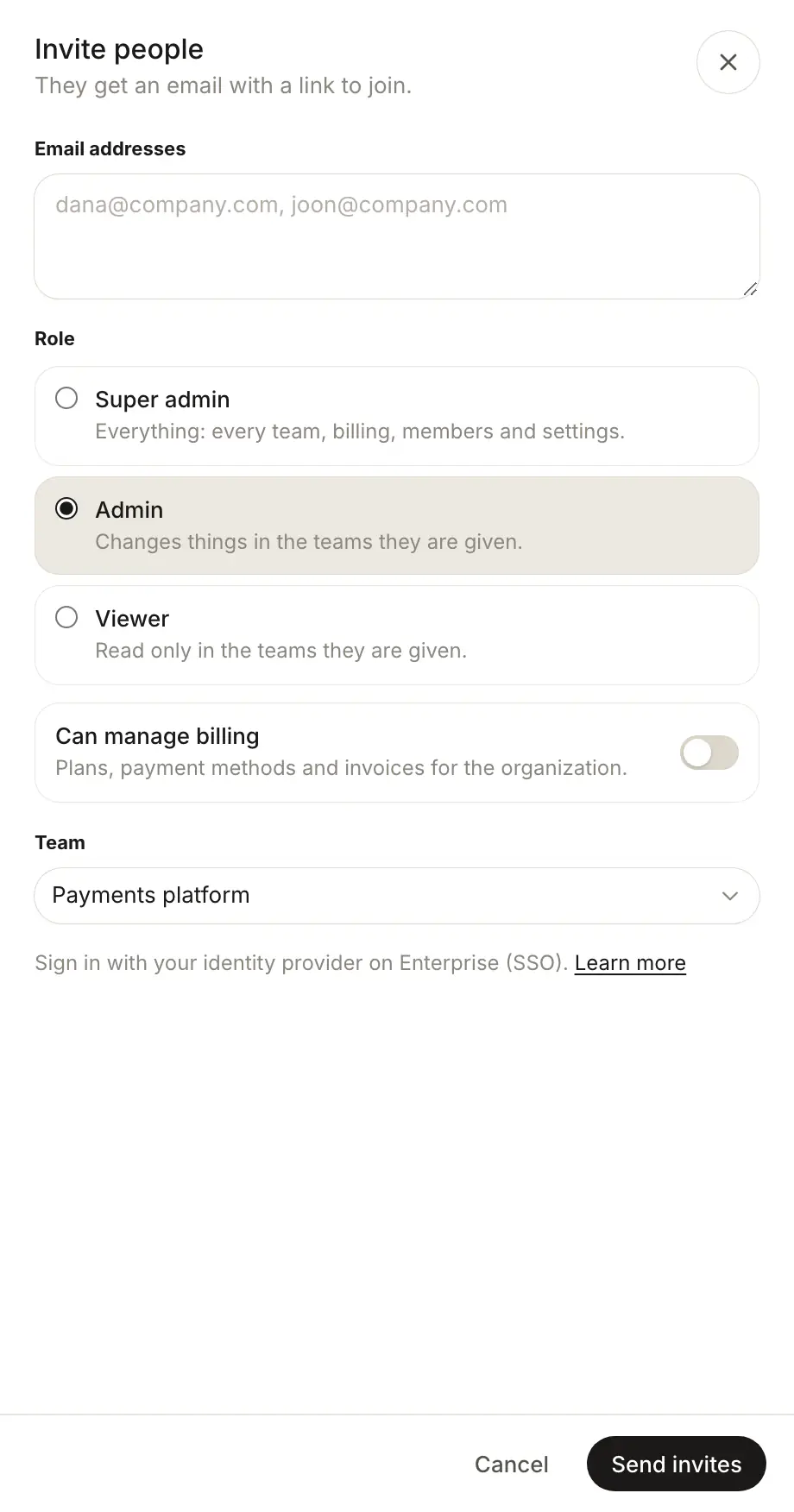
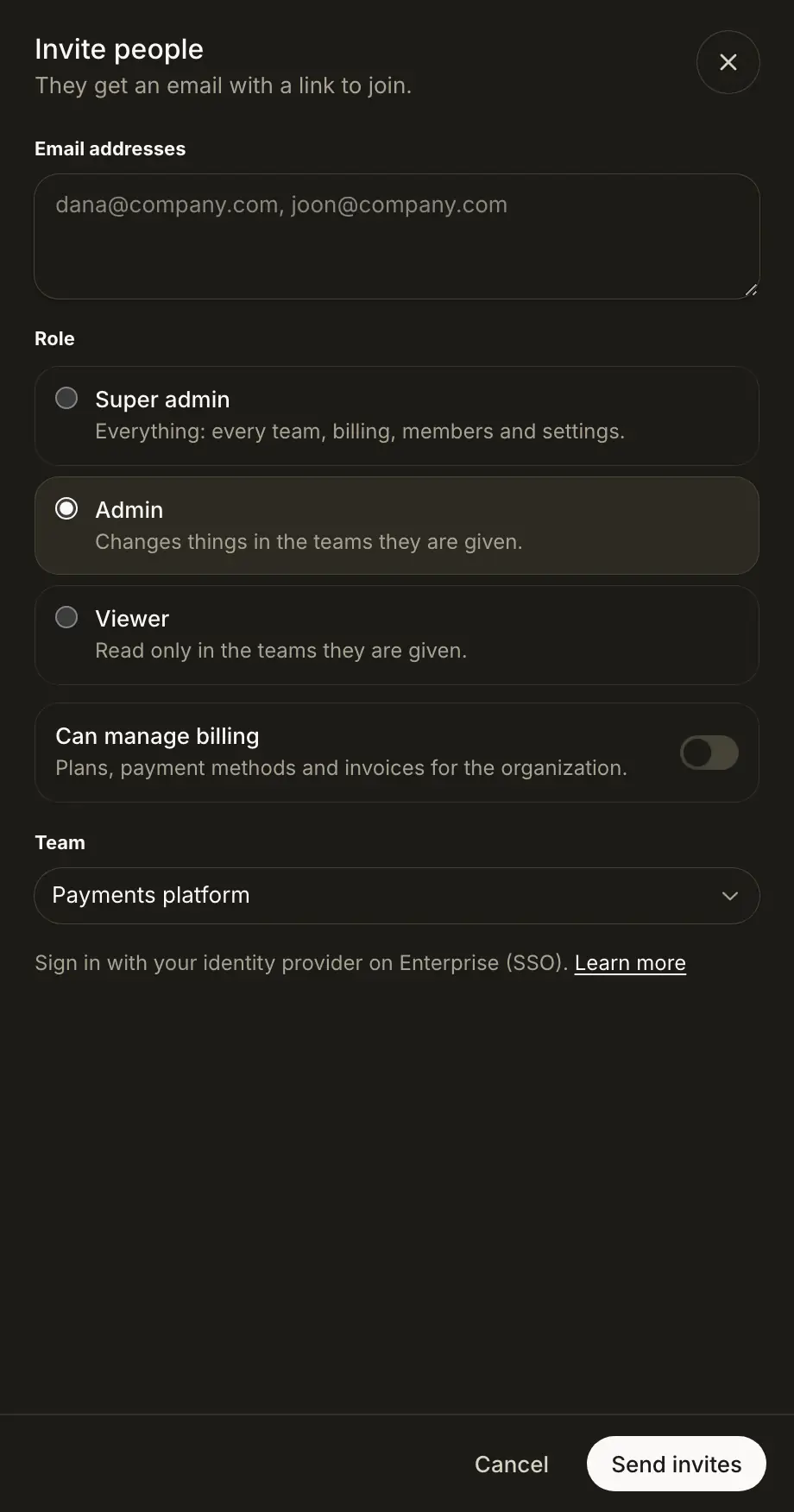
Invite people opens a sheet. People you invite get an email with a link to join.
| Field | What it does |
|---|---|
| Email addresses | One or more addresses, separated by commas, spaces or semicolons. Up to 50 at a time. |
| Role | Super admin, Admin (the default) or Viewer. |
| Can manage billing | Shown for Admin. Gives billing rights for the organization. |
| Team | The one team they join. Hidden for a Super admin. An Admin with billing can pick No team access. |
Send invites sends the emails. You cannot invite yourself or a disposable email address. On plans without SSO, the sheet also links to single sign-on, which is on Enterprise.
On a pending invitation, Resend invitation sends the email again. Revoke invitation asks you to confirm first: the invite link stops working, and adding the person later takes a new invitation.
What can I change with Manage access?#
Manage access opens a sheet with the person's name, email and current role:
- Role: Super admin, Admin or Viewer, with Can manage billing under Admin. Picking Admin or Viewer applies it to every team they hold.
- Team access: one menu per team they belong to, with Admin, Viewer or Remove from team. Hidden when you pick Super admin.
- Remove from organization removes the person from the organization. It does not show on your own row.
Save applies the changes.
Who can manage members?#
Only Super admins see Invite people, Manage access and Edit access. Admins, Admins with billing and Viewers see the page read-only, with "View only" in the actions column.
Frequently asked questions#
What is the difference between a Super admin and an Admin?
A Super admin can do everything: every team, billing, members and settings. An Admin changes things only in the teams they are given. A Viewer can only look, in the teams they are given.
How do I give someone access to billing?
Make them an Admin and turn on Can manage billing. They then manage plans, payment methods and invoices for the organization. They can have this with No team access.
How do I add an existing member to another team?
Send them another invitation from Invite people and pick the other team. Manage access changes or removes the team roles they already have.
What happens when a team has no Admin?
The page warns you. Only a Super admin can approve a vendor or block a script in that team until it has an Admin again.