SecurityApproved tags
Approved tags
Reference for Security > Approved tags: approve the Google Tag Manager containers your site may load, and every other container is blocked before it runs.
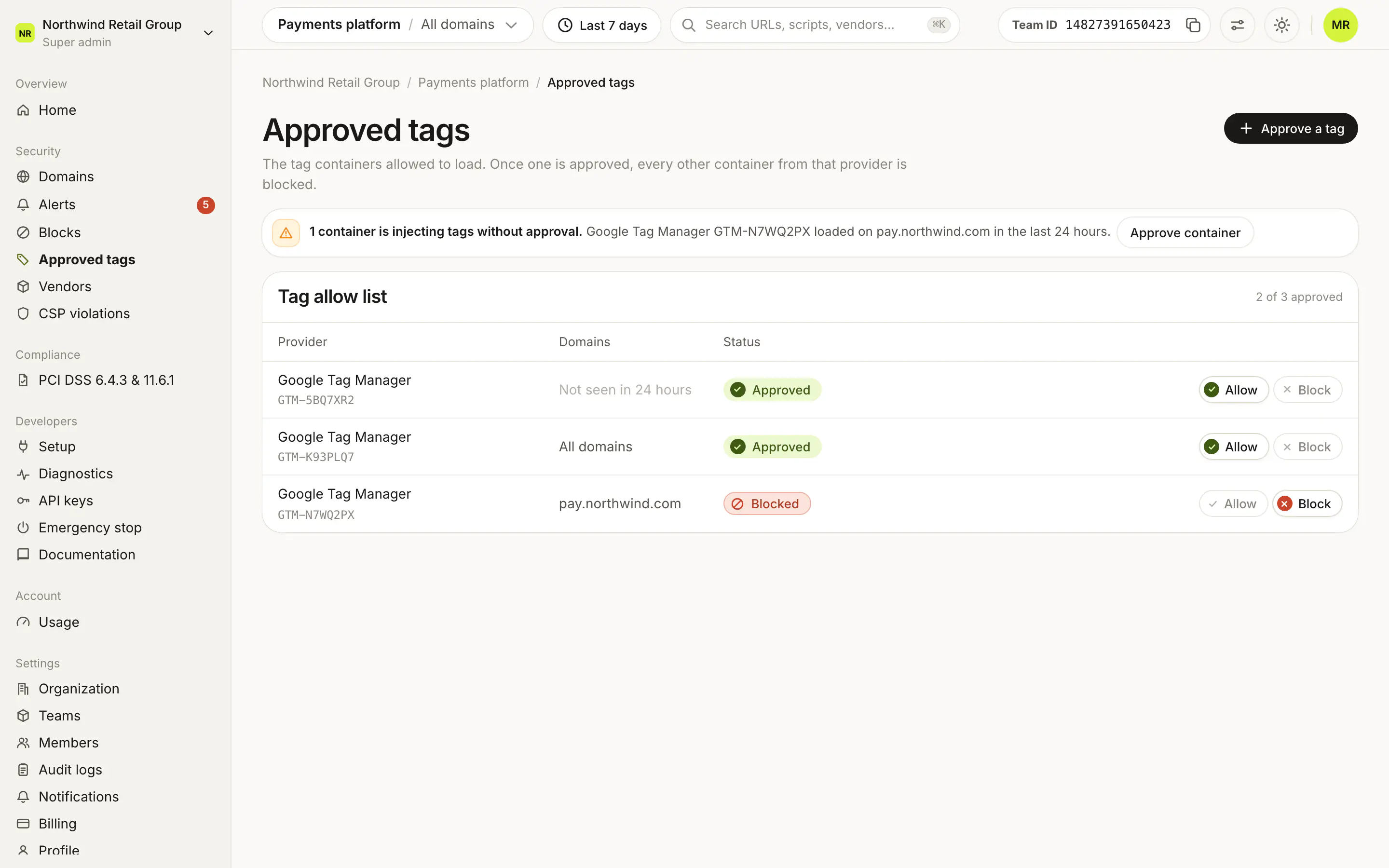
Security > Approved tags is an allow list for Google Tag Manager containers. Once you approve one container ID, every other Google Tag Manager container is blocked before it runs, on every domain in the team, so a container added outside your change process can't ship code to your visitors. Each container has one decision: Allow puts it on the list, Block takes it off. Super admins and Admins of the team can change the list.
Why isn't Approved tags in my sidebar?#
The page is turned on per team, because approving a container changes what your site can load. When it is on, Approved tags shows under Security, after Blocks. To turn it on for your team, talk to an expert.
What does the Tag allow list show?#
The Tag allow list card counts how many containers are approved ("2 of 3 approved"). It lists every approved container, then every Google Tag Manager container seen on your domains in the last 24 hours that is not approved.
| Column | What it shows |
|---|---|
| Provider | Google Tag Manager, and the container ID. |
| Domains | Where the container loaded in the last 24 hours, or All domains when it loaded on every domain. "Not seen in 24 hours" when it did not load. |
| Status | Approved, Blocked or Needs review (see below). |
| Decision | Allow or Block. |
With no containers yet, the card says "No tags yet".
What do the statuses mean?#
| Status | Meaning |
|---|---|
| Approved | On the allow list. It can load. |
| Blocked | Not on the list while at least one container is approved, so it is blocked. |
| Needs review | Seen on your domains, but nothing is approved yet, so nothing is blocked. |
While nothing is approved, Block is disabled: approve at least one container to start blocking the rest.
What do Allow and Block do?#
- Allow adds the container to the list. The confirmation reads "Only approved container IDs can load."
- Block on an approved container removes it from the list. It stops loading within a few minutes. If it was the last approved container, the restriction is lifted and every Google Tag Manager container loads again.
Every change saves straight away and applies to all of the team's domains. The toast has Undo.
What is the banner above the list?#
When an unapproved container loaded in the last 24 hours, a banner says how many "are injecting tags without approval" and names the first one and the domain it loaded on. Approve container approves it.
How do I approve a container that hasn't loaded yet?#
Click Approve a tag at the top of the page. In the sheet, enter the Google Tag Manager container ID, such as GTM-ABC1234, and click Approve tag. It applies to all of the team's domains.
Who can change the list?#
Super admins, and Admins of the team. Viewers can see the list, but their changes are refused.
Frequently asked questions#
Why don't I see Approved tags in the sidebar?
The page is turned on per team. If your team doesn't have it, talk to an expert.
What happens when I approve the first container?
From then on, only approved containers load. Every other Google Tag Manager container is blocked on all of the team's domains.
What happens if I remove the last approved container?
The restriction is lifted, so every Google Tag Manager container loads again.
Which tag providers are supported?
Google Tag Manager. Container IDs look like GTM-ABC1234.