SecurityCSP violations
CSP violations
Reference for Security > CSP violations: the weekly violation table and its columns, the directive filters, monthly report limits and the CSV export.
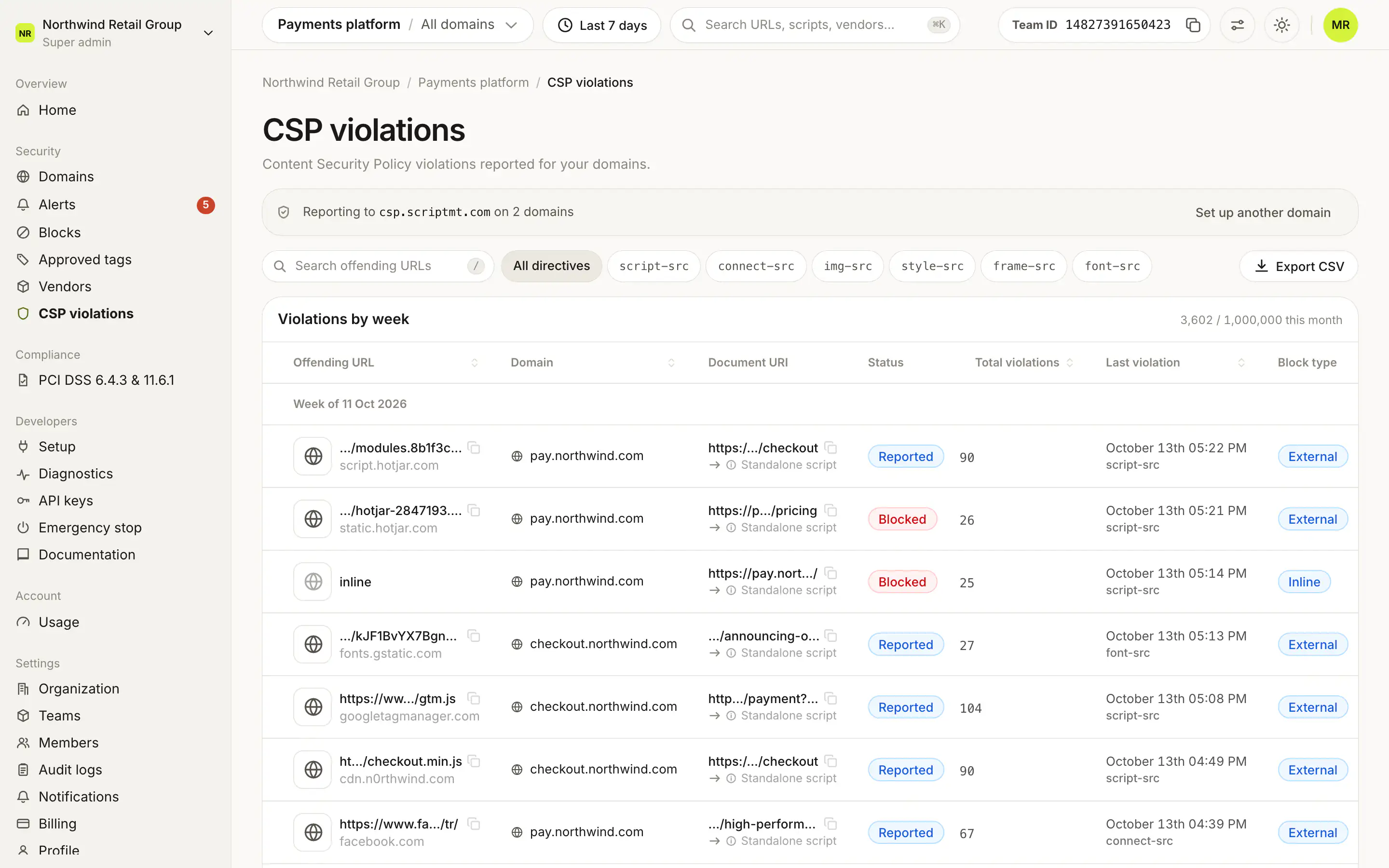
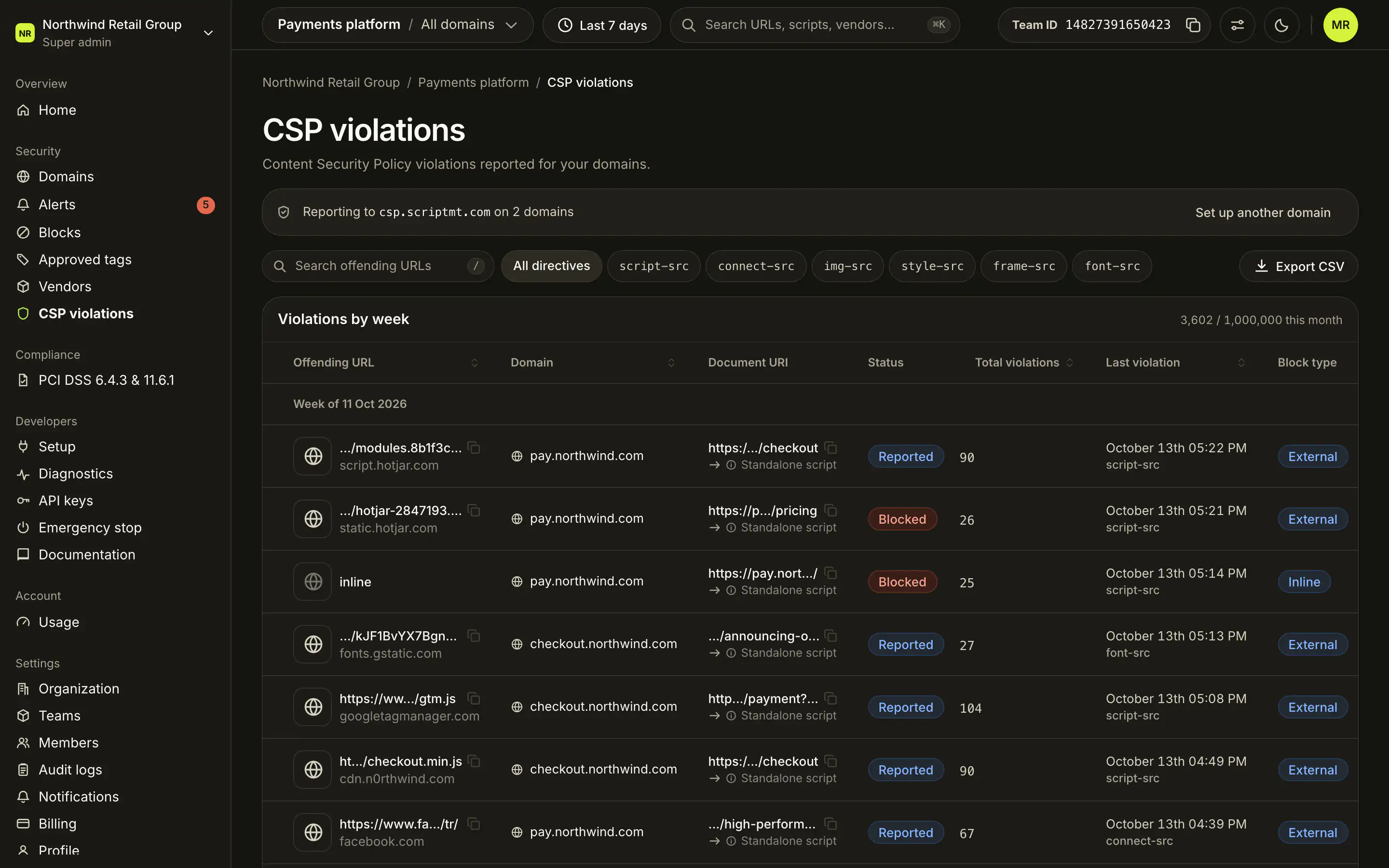
Security > CSP violations lists the Content Security Policy violations that browsers report for your domains, grouped by week, with the offending URL, the page it happened on, whether it was reported or blocked, and how often. Reports start once your server sends the reporting headers: set up CSP reporting →. CSP violations are on every plan, and everyone in the team can see them.
What does the page show?#
A bar at the top says where reports go: "Reporting to csp.scriptmt.com on" the number of domains reporting, or the domain picked in the top bar. Set up another domain opens the CSP setup sheet.
If no domain has finished setup (or the selected domain has not), the page says "CSP reporting isn't set up yet" with Set up CSP reporting (or Set up this domain) instead of the table.
The window is the top bar's date range, extended back to the start of its first week. History goes back 30 days on Free and Pro, and 90 days on Enterprise.
What does each column mean?#
The Violations by week card groups rows under "Week of" headers, newest week first. Its header shows how many reports the team received this month, against the plan's limit.
| Column | What it shows |
|---|---|
| Offending URL | The URL the policy objected to, and its domain. Inline code and eval show as inline and eval. |
| Domain | Your domain that reported it. |
| Document URI | The page where it happened, and the script that caused it, or Standalone script when the page loaded it directly. |
| Status | Reported (report-only policy) or Blocked (enforced policy). |
| Total violations | How many times it was reported that week. |
| Last violation | When it was last reported, and the directive it broke. |
| Block type | What kind of resource it was, such as External, Inline or Eval. |
Sort by Offending URL, Domain, Total violations or Last violation by clicking the column header. By default, the most recent violation comes first within each week.
How do I filter violations?#
- Search offending URLs matches part of the offending URL.
- The directive chips filter by directive: All directives,
script-src,connect-src,img-src,style-src,frame-srcandfont-src. - The domain picker in the top bar shows one domain.
How many reports does my plan show?#
| Plan | Reports shown per month |
|---|---|
| Free | 50,000 |
| Pro | 1,000,000 |
| Enterprise | Set by your contract |
Past the limit, a banner says "You reached this month's limit" with the number. Reports beyond it are still collected but are not shown until the next month. Upgrade opens the plan options.
How do I export violations?#
Export CSV opens a sheet to export the raw reports behind the table:
- Pick a date range of up to 91 days, within the last 3 months (raw reports are kept for 3 months).
- The domain and URL search apply. The directive chip does not apply yet, so the file covers every directive.
- Export prepares the file in the background and emails a download link to you.
Over the monthly limit, exports are limited to the plan's monthly allowance. Anyone in the team can export.
Frequently asked questions#
Why does the page say CSP reporting isn't set up?
No domain in the team (or the domain picked in the top bar) has finished CSP reporting setup. Click Set up CSP reporting and follow CSP reporting.
What is the difference between Reported and Blocked?
Reported comes from a report-only policy: the browser would have blocked the resource but let it load. Blocked comes from an enforced policy: the browser stopped it.
What happens when I pass the monthly limit?
Reports beyond the limit are still collected, just not shown on the page until next month. A banner says so, with Upgrade for a higher limit.
Does the directive filter apply to exports?
Not yet. An export covers every directive. The domain and the URL search do apply.