Get startedAI assistant
Install with an AI coding assistant
Paste one prompt into Claude Code, Cursor or GitHub Copilot. It fetches the Script Monitoring setup guide and installs the tag with your script URL.
You can let an AI coding assistant install Script Monitoring: copy the prompt from Developers > Setup, step 3, AI, and paste it into Claude Code, Cursor, GitHub Copilot or a similar tool. The prompt tells the assistant to fetch our setup guide, detect your framework and add the tag with your team's script URL.
What is the prompt?#
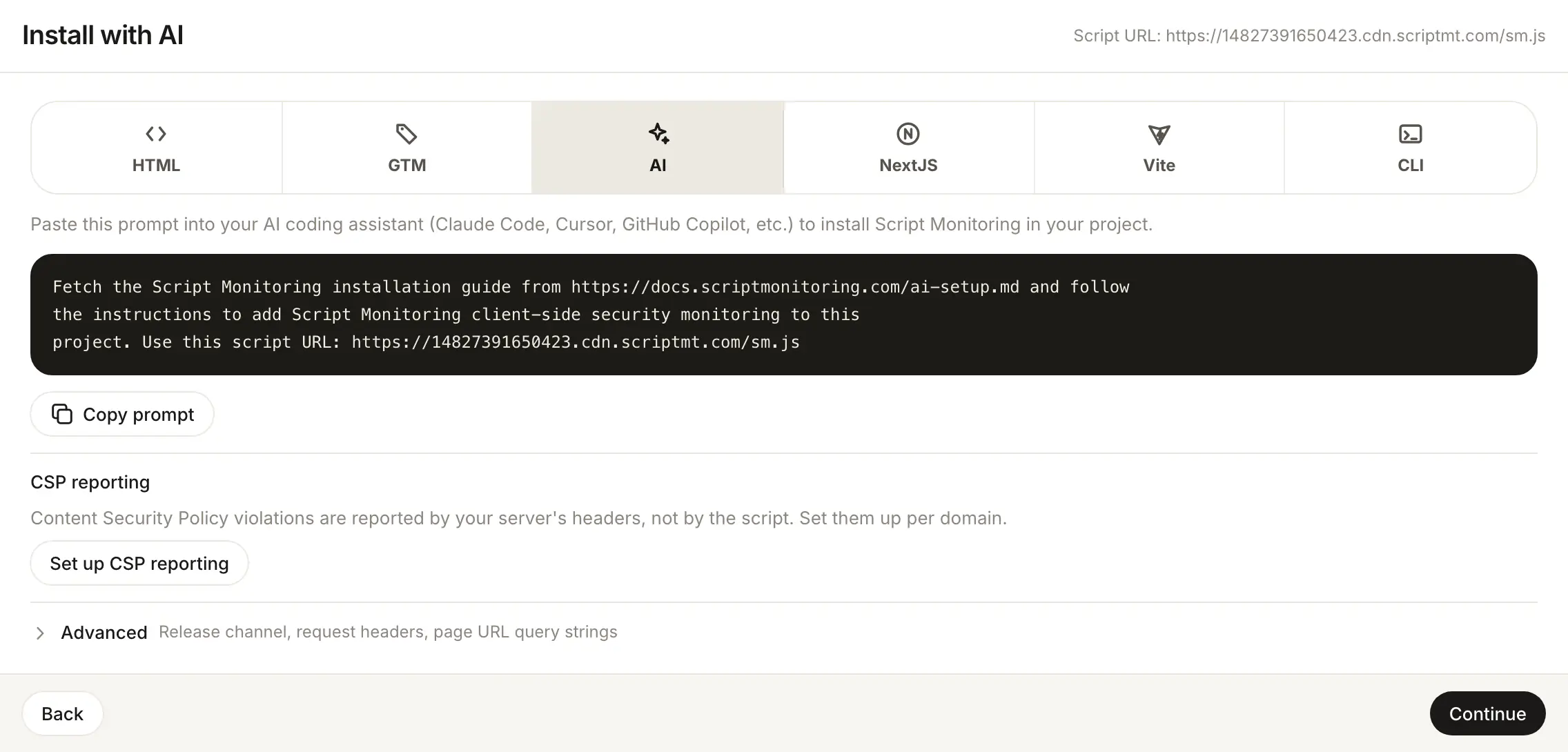
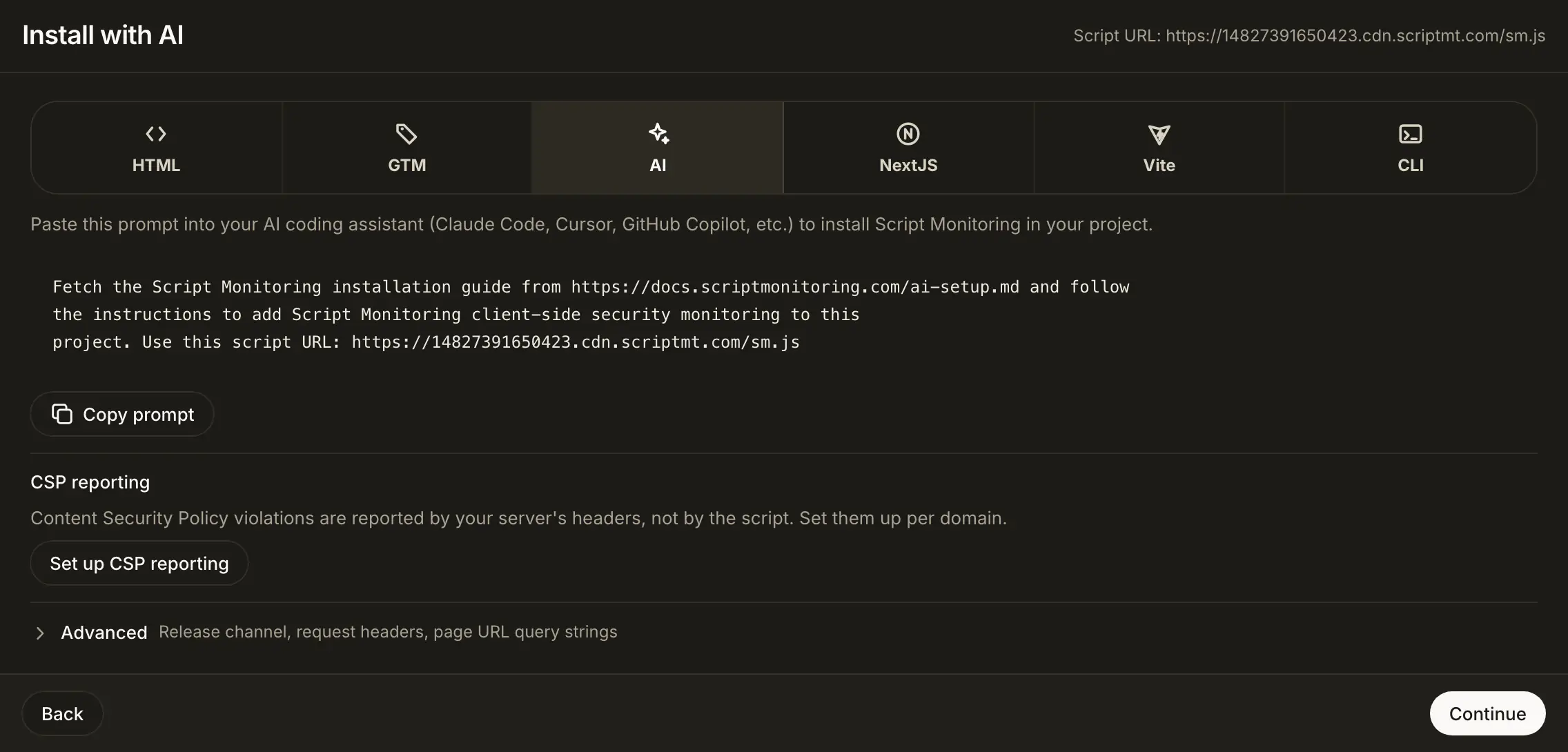
The AI panel says: "Paste this prompt into your AI coding assistant (Claude Code, Cursor, GitHub Copilot, etc.) to install Script Monitoring in your project." Copy prompt copies one line, with your script URL filled in:
Fetch the Script Monitoring installation guide from https://docs.scriptmonitoring.com/ai-setup.md and follow the instructions to add Script Monitoring client-side security monitoring to this project. Use this script URL: https://<teamID>.cdn.scriptmt.com/sm.js
How do I use it?#
- In the dashboard, open Developers > Setup, go to step 3, Install, and pick AI.
- Click Copy prompt.
- Open your project in your coding assistant and paste the prompt.
- Review the change before you merge it:
- the tag (or
ScriptMonitoringScript, or thescriptMonitoring()plugin) is the first script in the<head>, with noasyncordefer; - nothing else in the
<head>was removed or reordered; - if the project has a Content Security Policy,
*.cdn.scriptmt.comwas added to the existingscript-srcandconnect-src, and nothing was removed.
- the tag (or
- Deploy, load a page and check Verify it's working.
What does the setup guide tell the assistant?#
ai-setup.md is plain Markdown written for coding assistants. First it makes the assistant use your real script URL: it takes it from the prompt, asks you for it (or your team ID from Developers > Setup) if it is missing, never guesses one, and checks that the URL returns the script before it changes any file. Then it asks the assistant to pick the method that fits the project (Next.js, Vite, the CLI for static builds, or HTML), keep the tag first and synchronous, add it only once, and extend an existing Content Security Policy instead of replacing it.
Frequently asked questions#
What does the assistant read?
The prompt points it at ai-setup.md, a Markdown guide written for coding assistants. It covers Next.js, Vite, static builds with the CLI, plain HTML and Content Security Policy changes.
Does the prompt contain anything secret?
No. It contains your team's script URL, which is public: every visitor's browser loads it.
Which assistants does it work with?
Any assistant that can fetch a URL and edit your project, such as Claude Code, Cursor or GitHub Copilot. If yours cannot fetch URLs, paste the contents of ai-setup.md along with your script URL.