Get startedInstall the script tag
Install the script tag
Add the Script Monitoring tag to your site. Copy your snippet from Setup step 3, pick a method and place the tag first in the head.
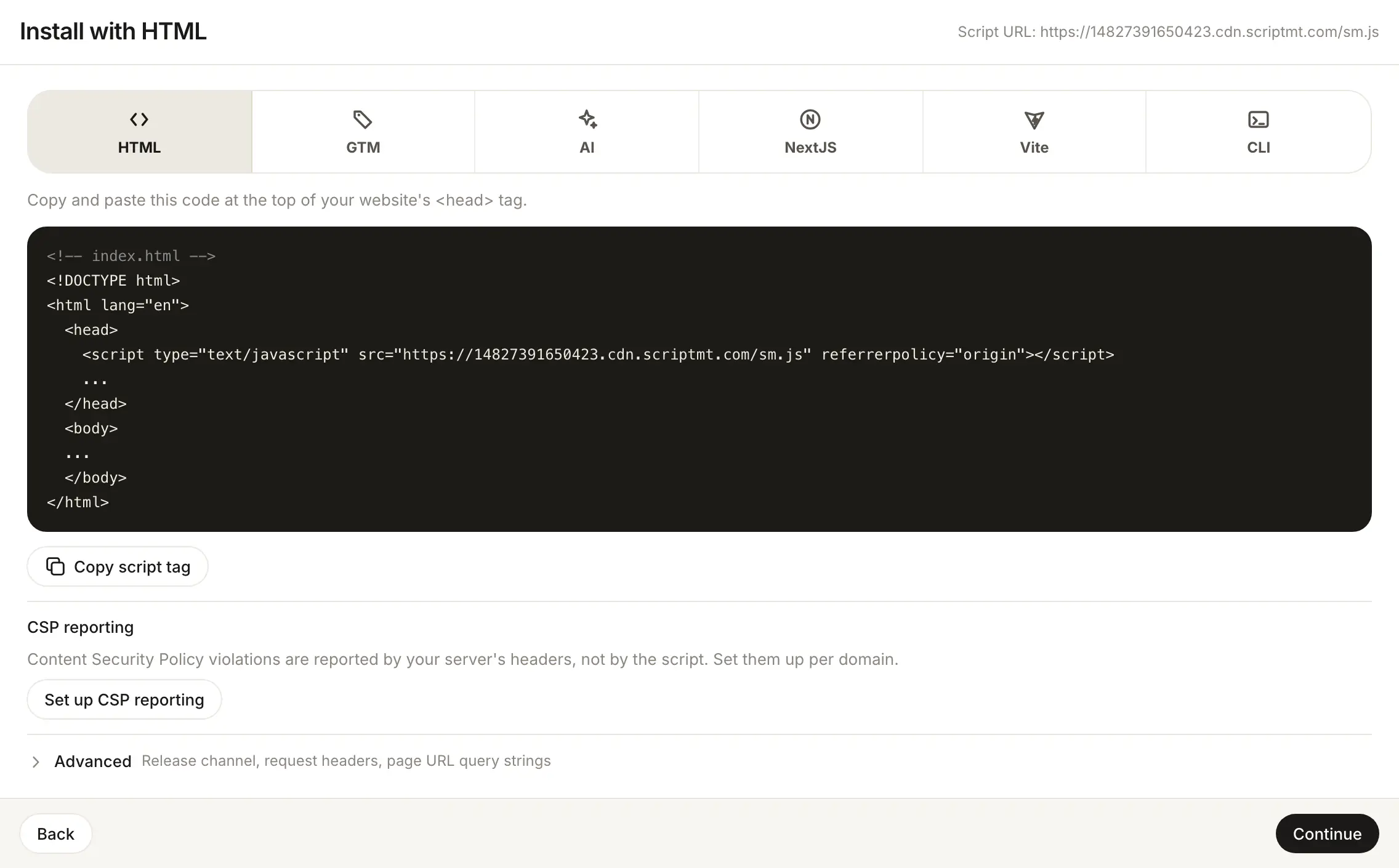
You install Script Monitoring by adding one script tag to the <head> of your site. The tag is the same for every page and every domain in a team, and the dashboard builds it for you: open Developers > Setup, go to step 3, Install, and copy the snippet for the method that fits your stack.
Which method should I use?#
Every method produces the same tag in the same place. Pick the one that matches who owns your HTML.
- HTMLYou edit the HTML or index.html yourself. The default and the most direct.
- Google Tag ManagerA Custom HTML tag. For testing only, because GTM does not guarantee load order.
- Next.jsThe @scriptmonitoring/next component, for the Pages Router or the App Router.
- ViteThe @scriptmonitoring/vite plugin injects the tag into every build.
- CLI@scriptmonitoring/cli injects the tag into static HTML after your build step.
- AI assistantOne prompt for Claude Code, Cursor or Copilot, with your script URL in it.
How do I find my snippet?#
- In the dashboard, open Developers > Setup. New accounts land here after sign-up.
- Answer step 1, Use case, and step 2, Site type. They are asked first because they change what the install step recommends, for example on a single-page app.
- Go to step 3, Install, and pick a method tile: HTML, GTM, AI, NextJS, Vite or CLI.
- Copy the snippet with its copy button. The step header shows your Script URL.
What goes into the snippet?#
Every snippet points at your team's script URL:
https://<teamID>.cdn.scriptmt.com/sm.js
<teamID> is your team's ID, a 14-digit number starting with 1: for example https://14827391650423.cdn.scriptmt.com/sm.js. Example IDs in these docs, such as 14827391650423, are reserved for documentation: no real team ever gets one, and our install tools reject them. Always use your own team ID. The dashboard fills it in, so a snippet copied from Setup is ready to paste. The CLI takes the same ID as --team-id.
Every method produces the same tag (the plain one is on HTML), with two rules:
referrerpolicy="origin"sends your site's origin with the request, so the tag knows which domain it runs on. Keep it.- There is no
asyncand nodefer. The tag has to run before the scripts it watches.
Where on the page does the tag go?#
At the top of the <head>, before any other script, on every page. Scripts that start before the tag are not seen. On a single-page app the rule is the same: the tag goes in the <head> of your HTML shell, before the app bundle, and the tag watches route changes instead of page loads.
Do my domains need to be in the dashboard?#
Yes. The tag reports from the domains in your team, so each domain it runs on must be listed under Security > Domains. Step 5, Verify, counts how many of them are reporting.
What is under Install > Advanced?#
Step 3 has an Advanced section with the team's install settings. Only Super admins and Admins of the team can change them.
| Setting | What it does |
|---|---|
| Release channel | Which web script release the tag serves: Latest (the default) or Stable. |
| Page URL query strings | Removes query strings from page URLs before they are stored. Turn it on if your URLs carry secrets, such as password reset tokens or magic links. Script URLs are not affected, and URLs already stored are unchanged. |
| Custom request headers | Headers attached to the script's requests, so you can identify and filter them. |
Some teams also see Page monitoring scope, a list of URL patterns that limits which pages the script monitors. With no patterns, every page is monitored.
What comes after the install?#
Set your payment pages in step 4 if you need PCI DSS evidence, then verify the install in step 5. Content Security Policy reports are set up separately, with response headers on your server: see CSP reporting.
Frequently asked questions#
Is the snippet different for each domain?
No. The script is issued per team, and the team ID is part of its URL, so every domain in the team uses the same tag. CSP reporting is the one setting that is per domain.
Where do I find my team ID?
The dashboard fills it in for you in Setup step 3, which shows it as Script URL in the step header. It is also in the Team ID chip in the top bar, with a copy button. A team ID is a 14-digit number starting with 1, such as 14827391650423.
Can I add async or defer to the tag?
No. Keep it a plain, synchronous tag at the top of the <head>. Scripts that run before it are not seen.
Which method should I use for a single-page app?
The tag goes in the <head> of your HTML shell, before the app bundle. If you edit index.html yourself, use HTML. On Next.js, use Next.js. To have it enforced in CI, use Vite or the CLI.
Do I need a different tag for staging?
No. The tag is per team. If staging is a separate domain, add it to the team so it reports, or put it in a separate team if you want its data kept apart (more than one team needs Pro).