Stay informedSet up notifications
Set up notifications
Edit or add a notification rule, choose its trigger, domains and destinations (email, webhook or S3), then send a test to check it arrives.
To get alerted, open Settings > Notifications, edit a team rule (or add one), choose where it sends, and send a test. Which rules exist and which are on by default is on the Notifications reference.
How do I set up a rule?#
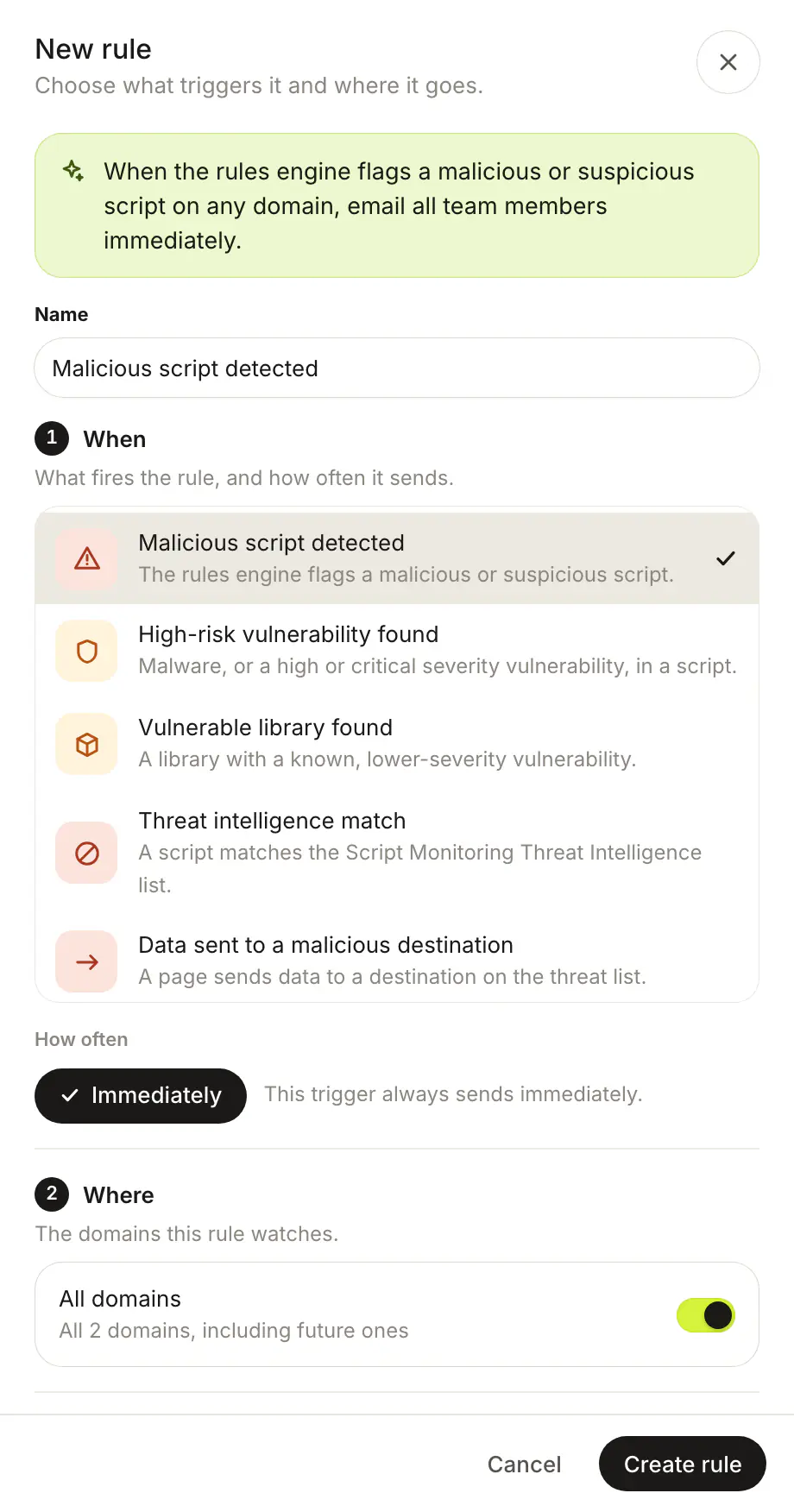
- Open Settings > Notifications. Click a rule to edit it, or New rule.
- Give it a Name.
- When: choose the trigger and how often it sends (Immediately, Daily digest or Weekly digest, where the trigger allows).
- Where: keep All domains on, or pick the domains the rule watches.
- Where to: add destinations with Email, Webhook or S3.
- Click Save (or Create rule), or Save and send test.
How do I test a rule?#
Click Send test on the rule's row, or Save and send test in the sheet. The result says Test delivered, Partly delivered, Test failed or Test queued. Last delivery is recorded for webhook and S3 destinations.
Frequently asked questions#
Why can't I send a test for some rules?
Digests sent on a schedule, such as New outbound connections to review and Recommended CSP header changed, can't be tested from the sheet.
The test says Test queued. Did it work?
The test was queued, but delivery was not confirmed within 30 seconds. Check your destination.
How do I send alerts to Slack or Discord?
Add a webhook destination with Format set to Slack or Discord: see Webhooks.