Prove PCI DSSPrepare PCI DSS evidence
Prepare PCI DSS evidence
Get assessor-ready evidence from Script Monitoring: justify payment-page vendors, check header changes and generate the weekly report.
To prepare your PCI DSS 6.4.3 and 11.6.1 evidence, confirm your payment pages are in scope, justify every payment-page vendor, review the week's security header changes, and generate the evidence pack. All four steps happen under Compliance > PCI DSS 6.4.3 & 11.6.1; what each tab shows is on the PCI DSS reference.
For what the requirements ask and how assessors test them, see requirement 6.4.3 and requirement 11.6.1. This page covers the steps in the dashboard.
What do I need before I start?#
- The tag installed and reporting. See Verify it's working.
- The use case PCI DSS 6.4.3 & 11.6.1 or Both, and your payment pages named in Setup step 4.
The page follows the top bar's domain and date range. A PCI view covers at most 10 days at a time.
Step 1: are all my payment pages in scope?#
Open the Payment pages monitored tab. It lists every page Script Monitoring treats as a payment page and the selector that put it there. This is the scope both 6.4.3 and 11.6.1 are measured against.
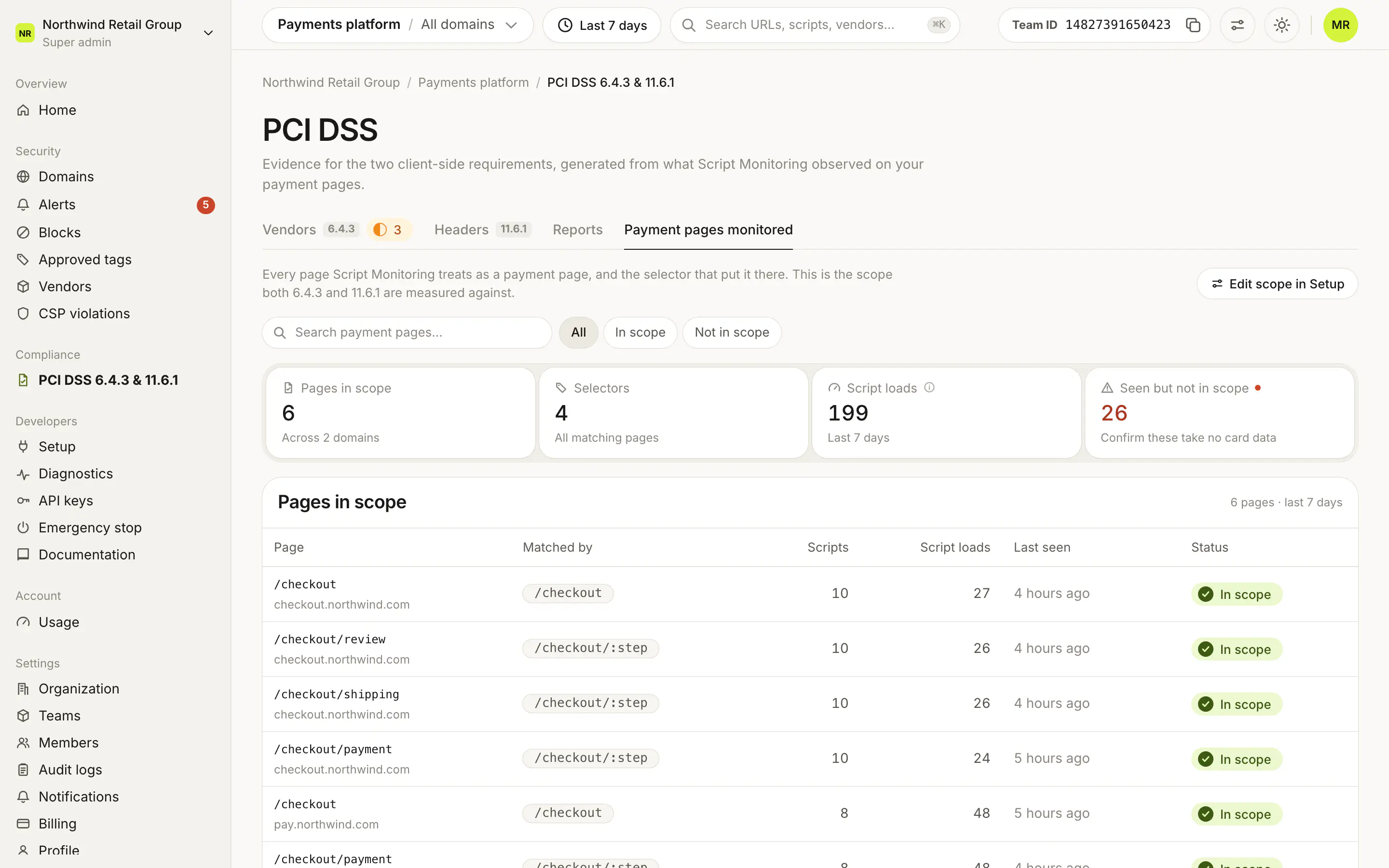
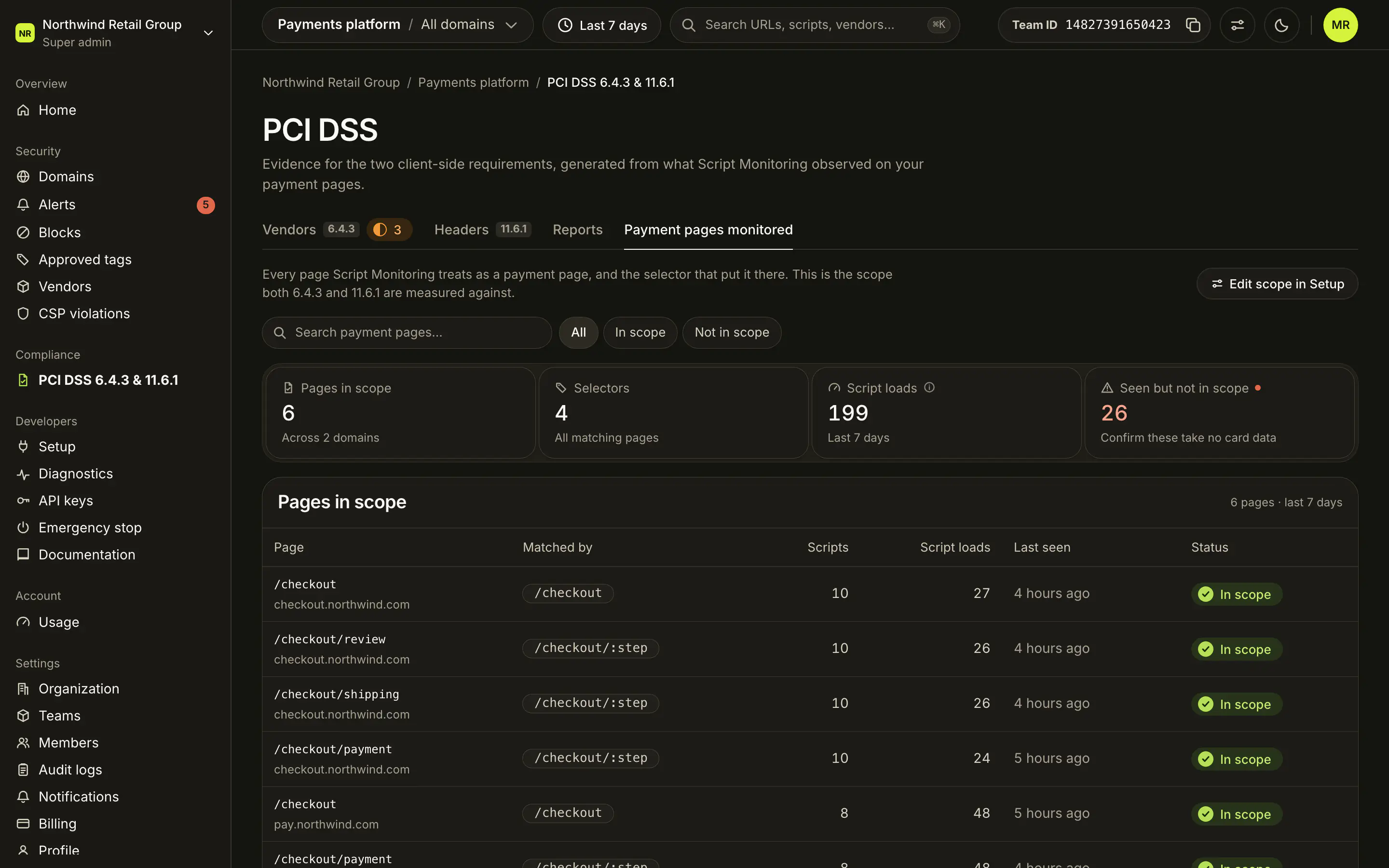
- Check Pages in scope and Selectors. A selector that matches nothing is the same as having no selector at all.
- Under Seen but not in scope, click Add to scope for each page that takes card data, or confirm it takes none.
- To change the selectors, click Edit scope in Setup: see Payment pages.
Step 2: is every vendor justified? (6.4.3)#
Open the Vendors tab. The tab shows a count of vendors needing review.
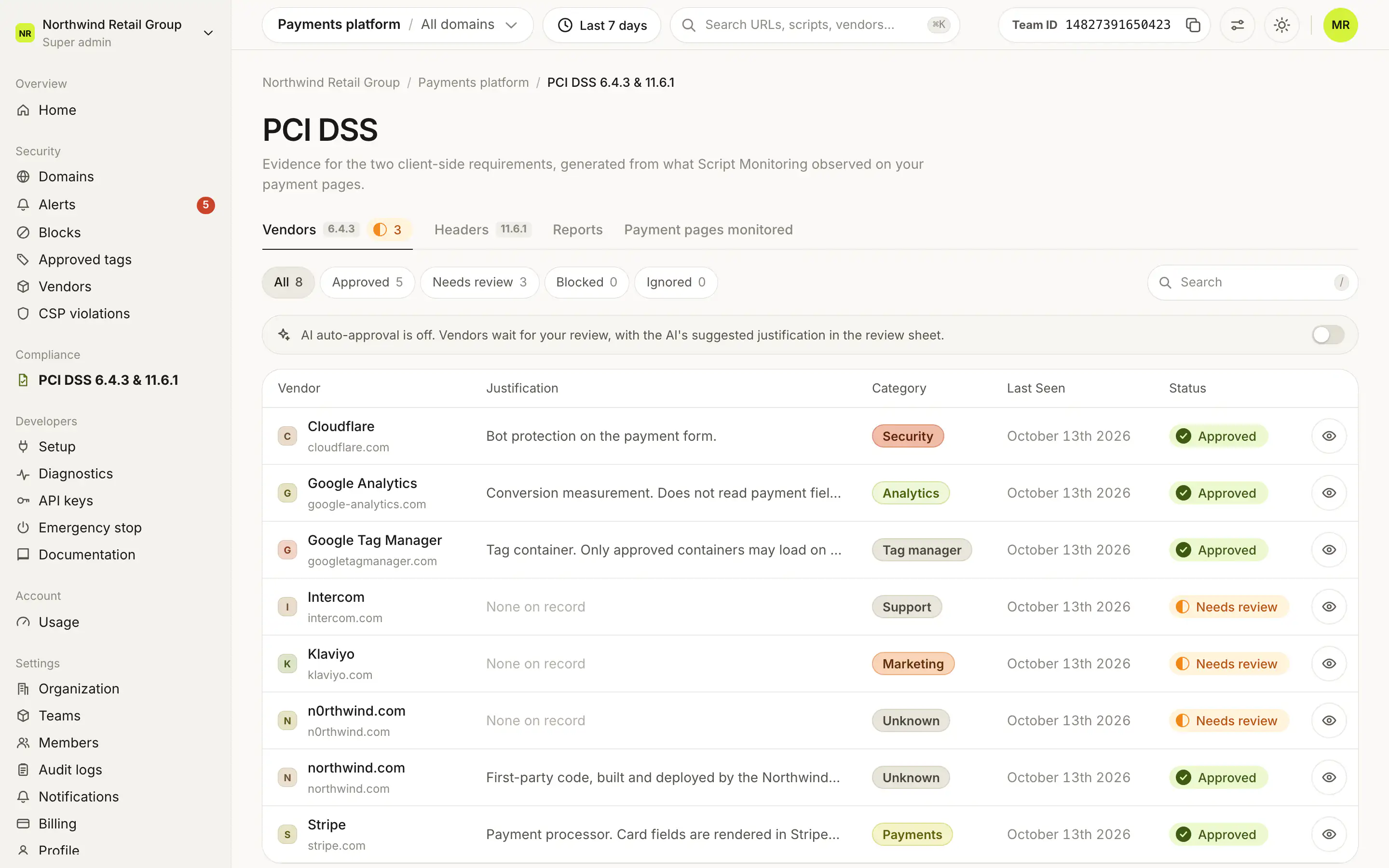
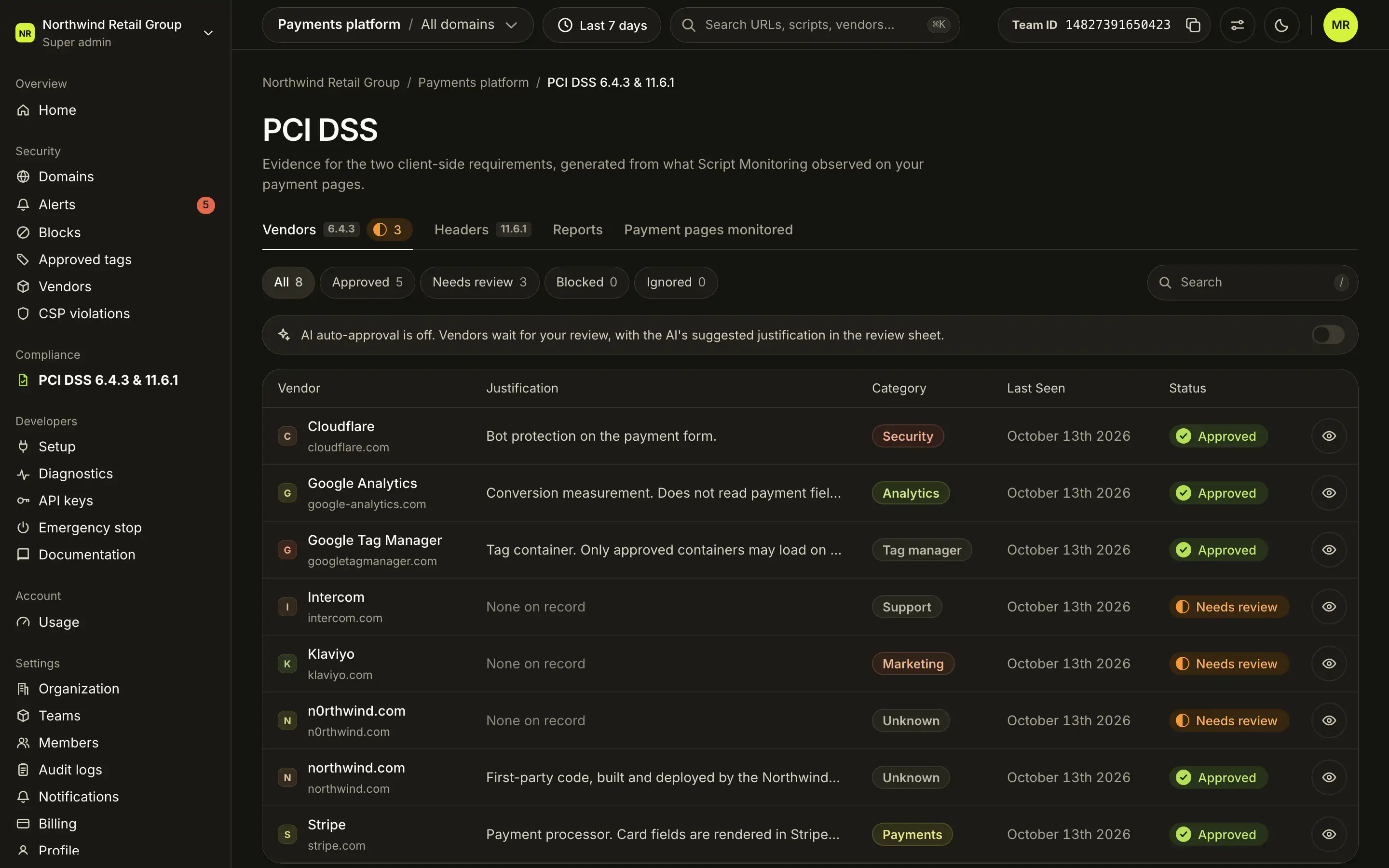
- Filter on Needs review.
- Open a vendor with its eye button. The review sheet lists its scripts and alerts.
- Write a Justification: why the script is on your payment page and what it is allowed to do. Use AI Suggestion fills in a draft when the AI review is available on your plan.
- Click Submit (or Submit and next) to approve it. To refuse it, click Block. Ignore hides a vendor from PCI review and reports; it needs a justification too.
Rules to know:
- A vendor with open alerts cannot be approved until the alerts are resolved. You can still block it.
- A script can carry its own justification that overrides the vendor's. Use Override justification for this script on the Scripts tab.
- On Pro and Enterprise, AI auto-approval for PCI DSS drafts a justification for each vendor and approves the ones it can justify. With it off, vendors wait for your review with the AI's suggestion in the sheet.
Step 3: what changed in the headers? (11.6.1)#
Open the Headers tab. It shows the latest week inside your date range.
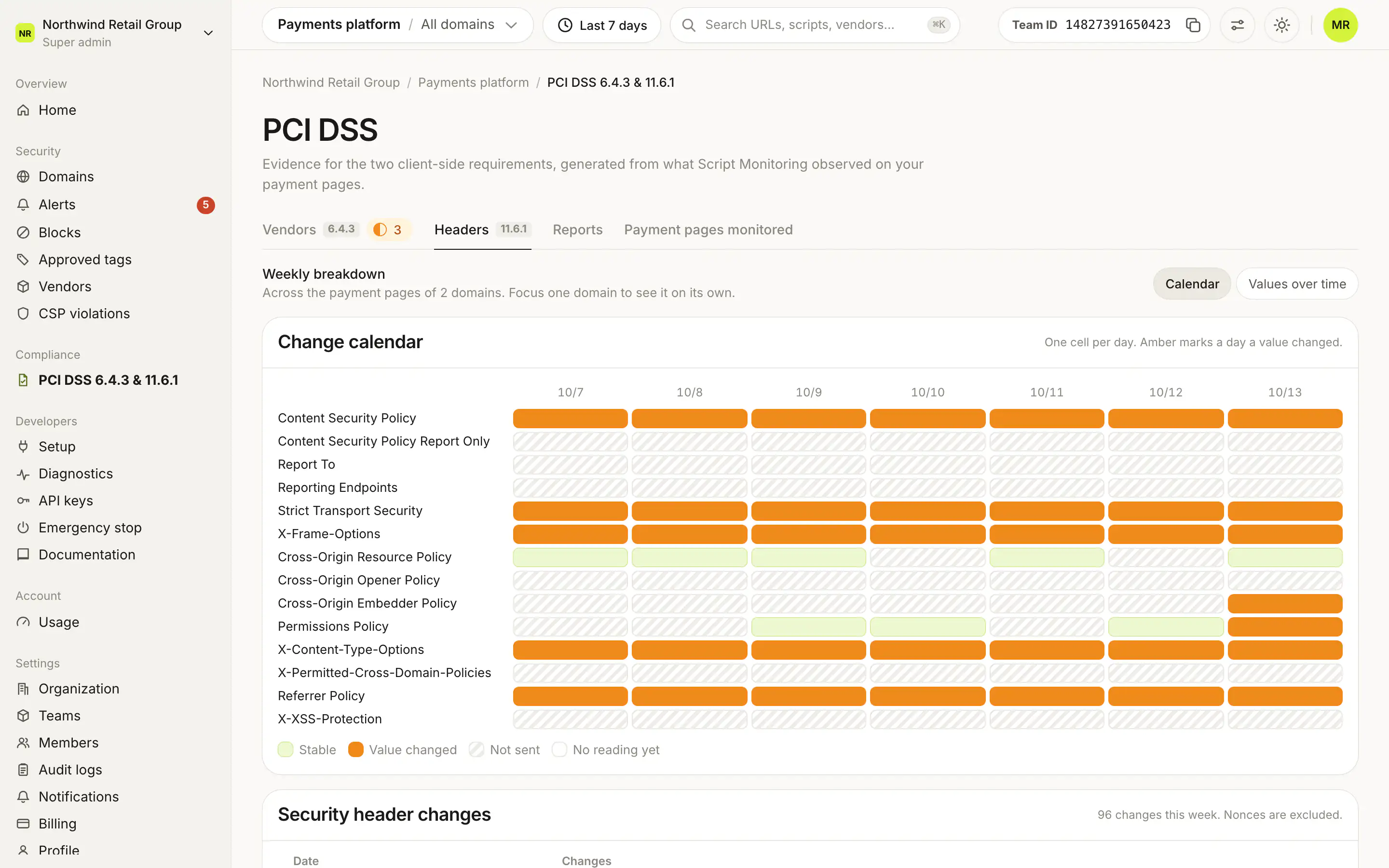
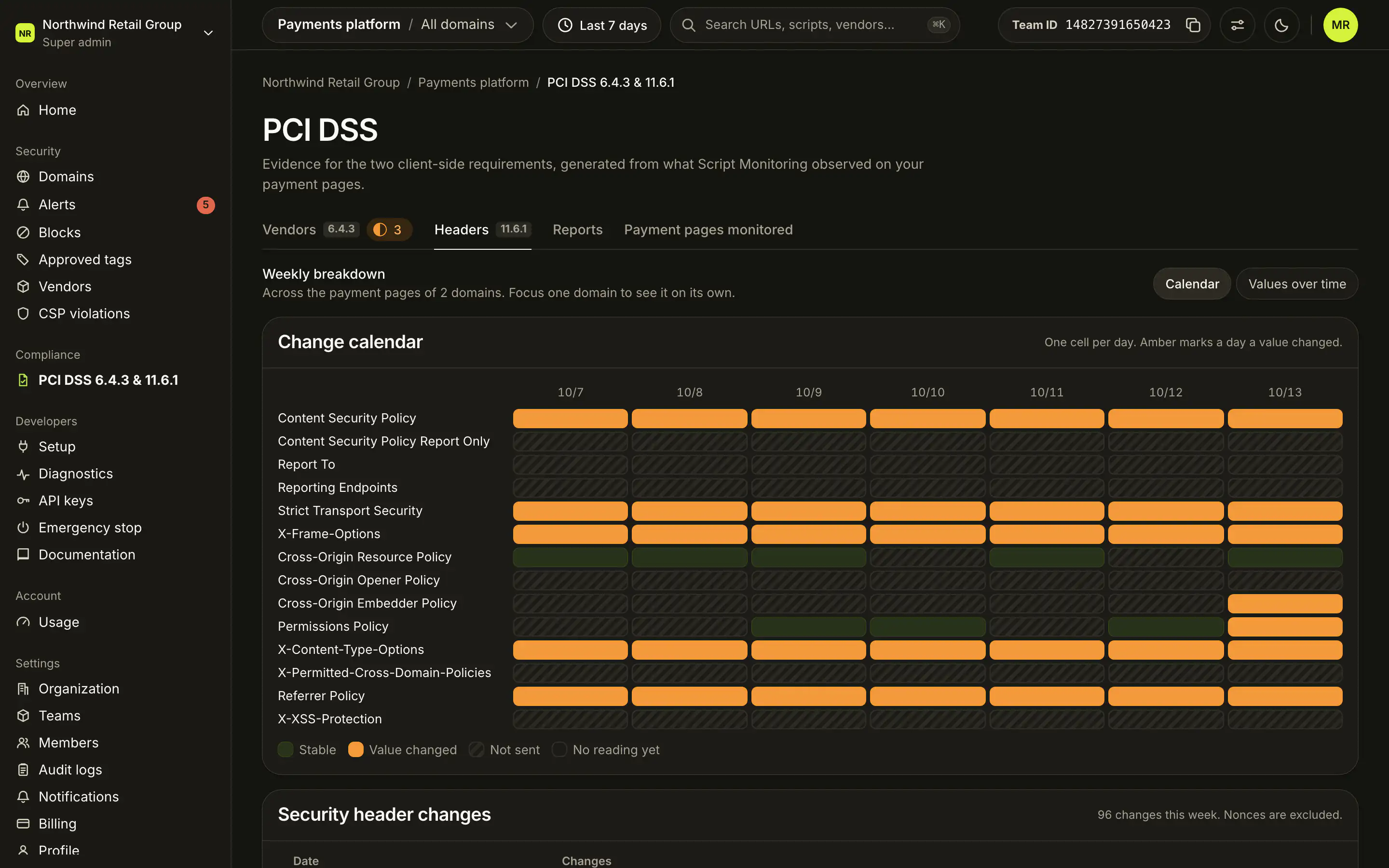
- In the Change calendar, look for amber cells: a day a header value changed.
- Read each change in Security header changes.
- Check every change against a planned release. An unexplained change on a payment page is what 11.6.1 asks you to detect and act on.
Step 4: how do I produce the report?#
Open the Reports tab. Weekly evidence packs lists the packs on file.
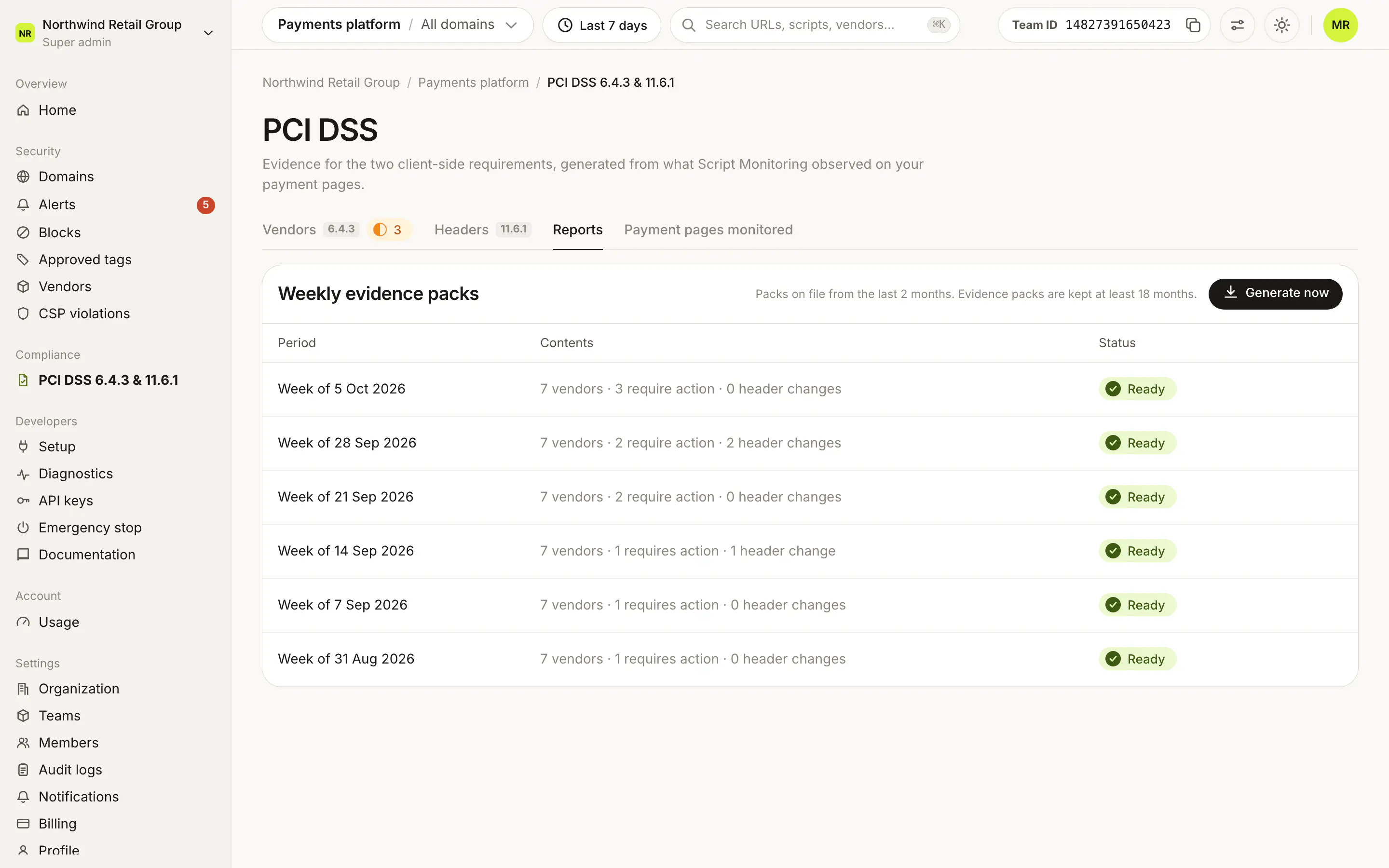
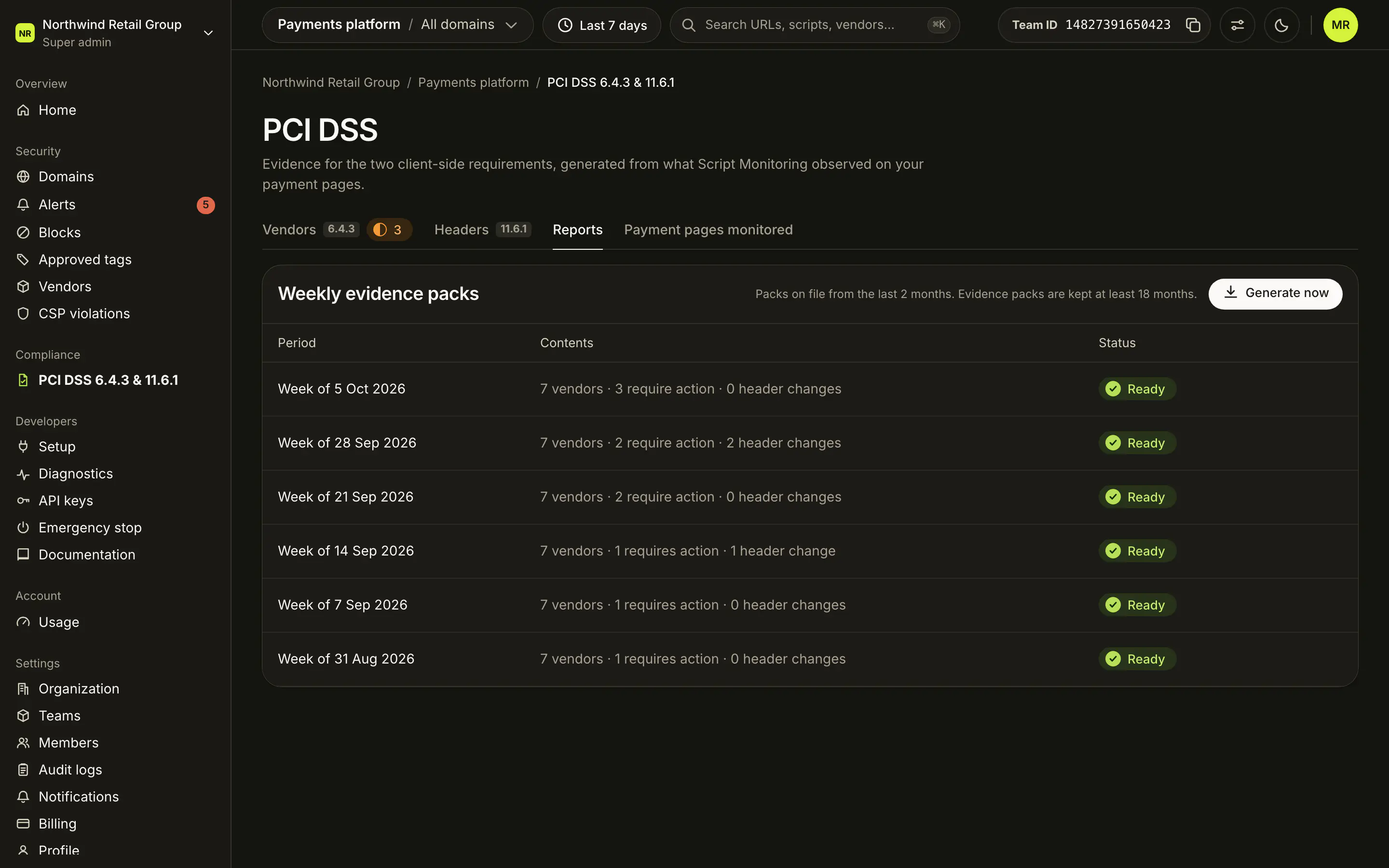
- Click Generate now.
- Pick a Domain and click Generate report. Only domains with PCI DSS set up are listed.
- Wait for the status to change from Generating to Ready, usually within a few minutes. You also get an email with a link.
- Click PDF to open the report, then Print / Save as PDF to save a copy.
What does the report look like?#
Each weekly evidence pack opens with a summary for the reporting period, then lists every vendor that ran on your payment pages with its written justification and each script it served (6.4.3), then shows all monitored security headers and what changed during the week, with before and after values (11.6.1). This example is from the Northwind demo.
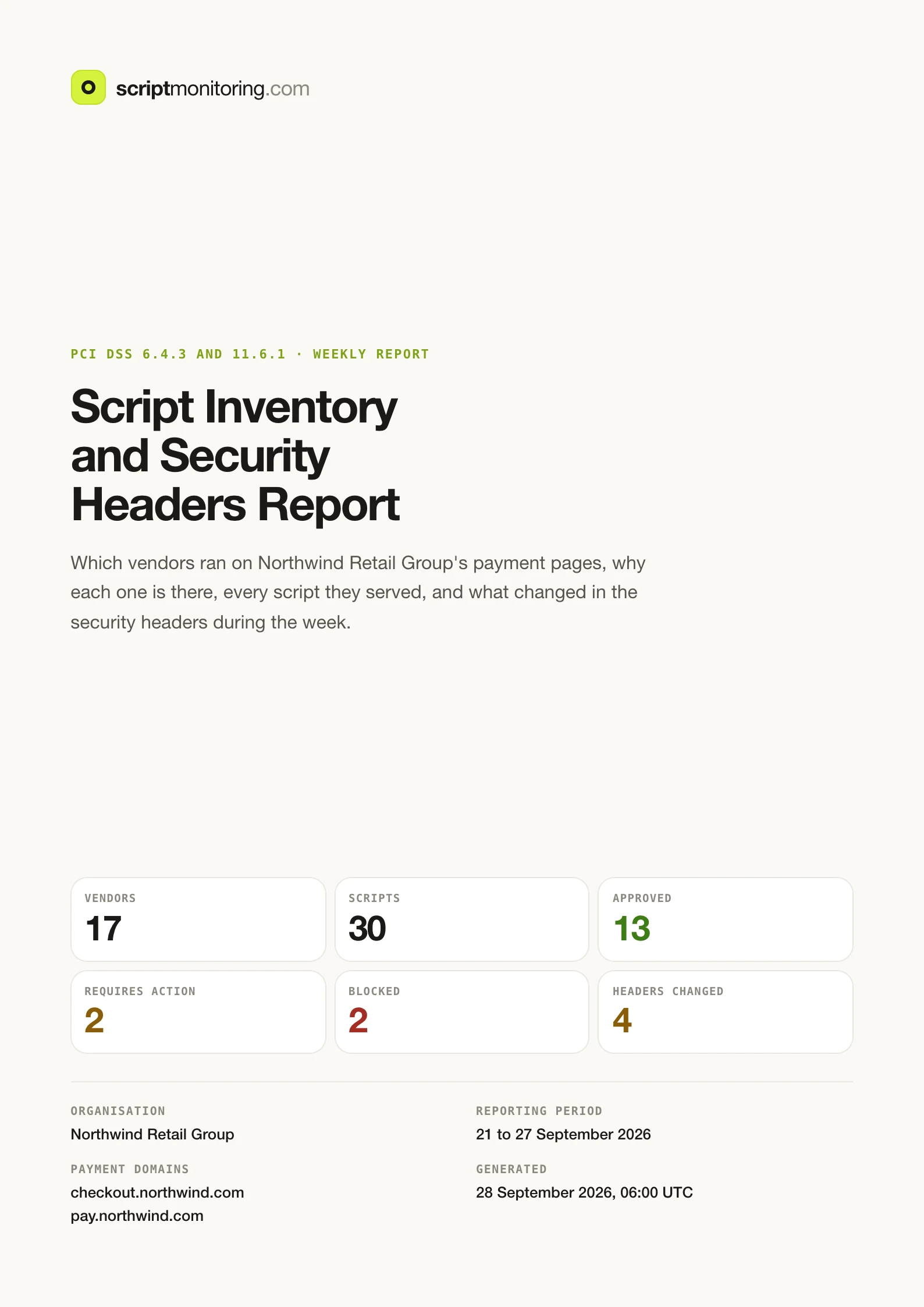
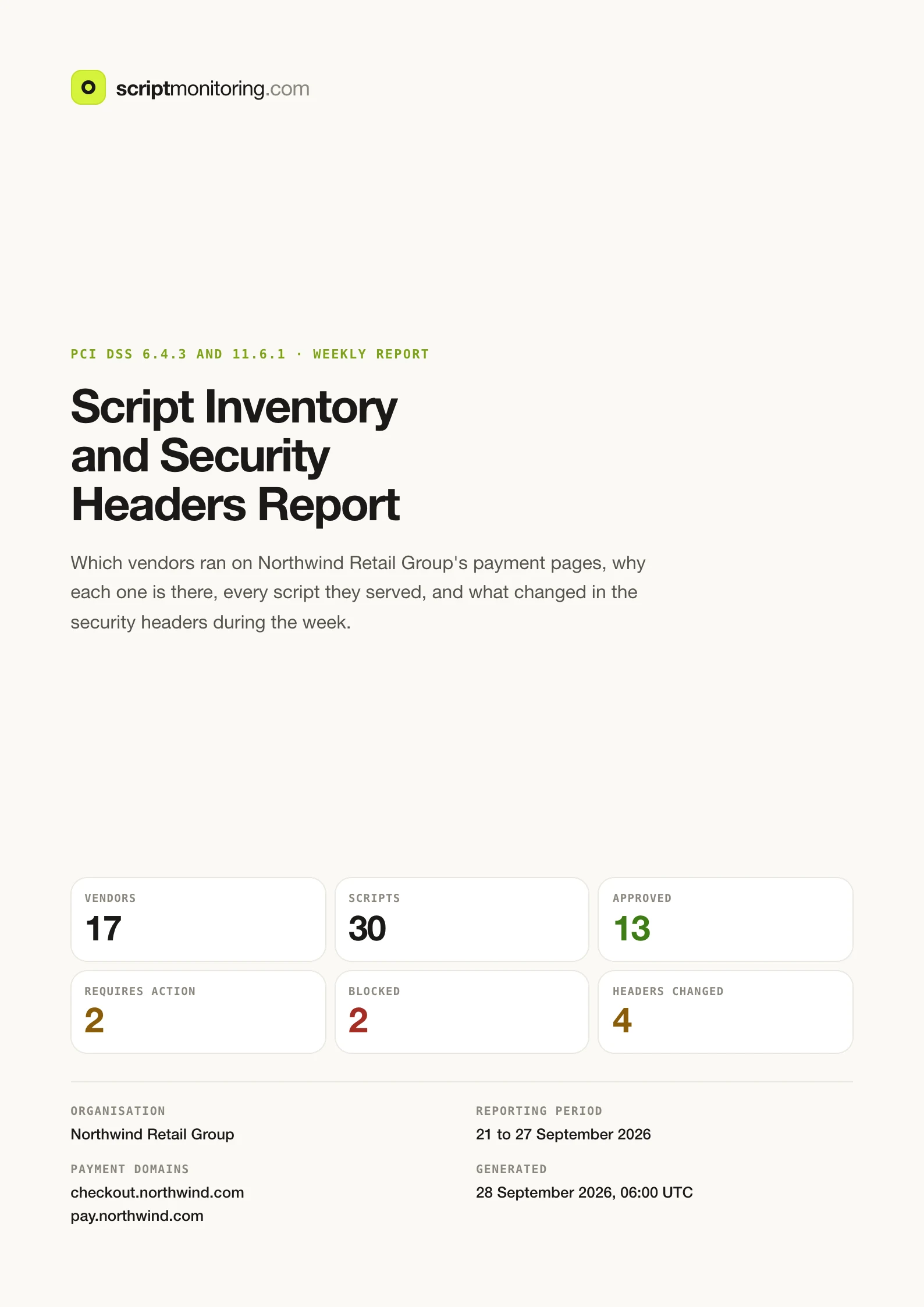
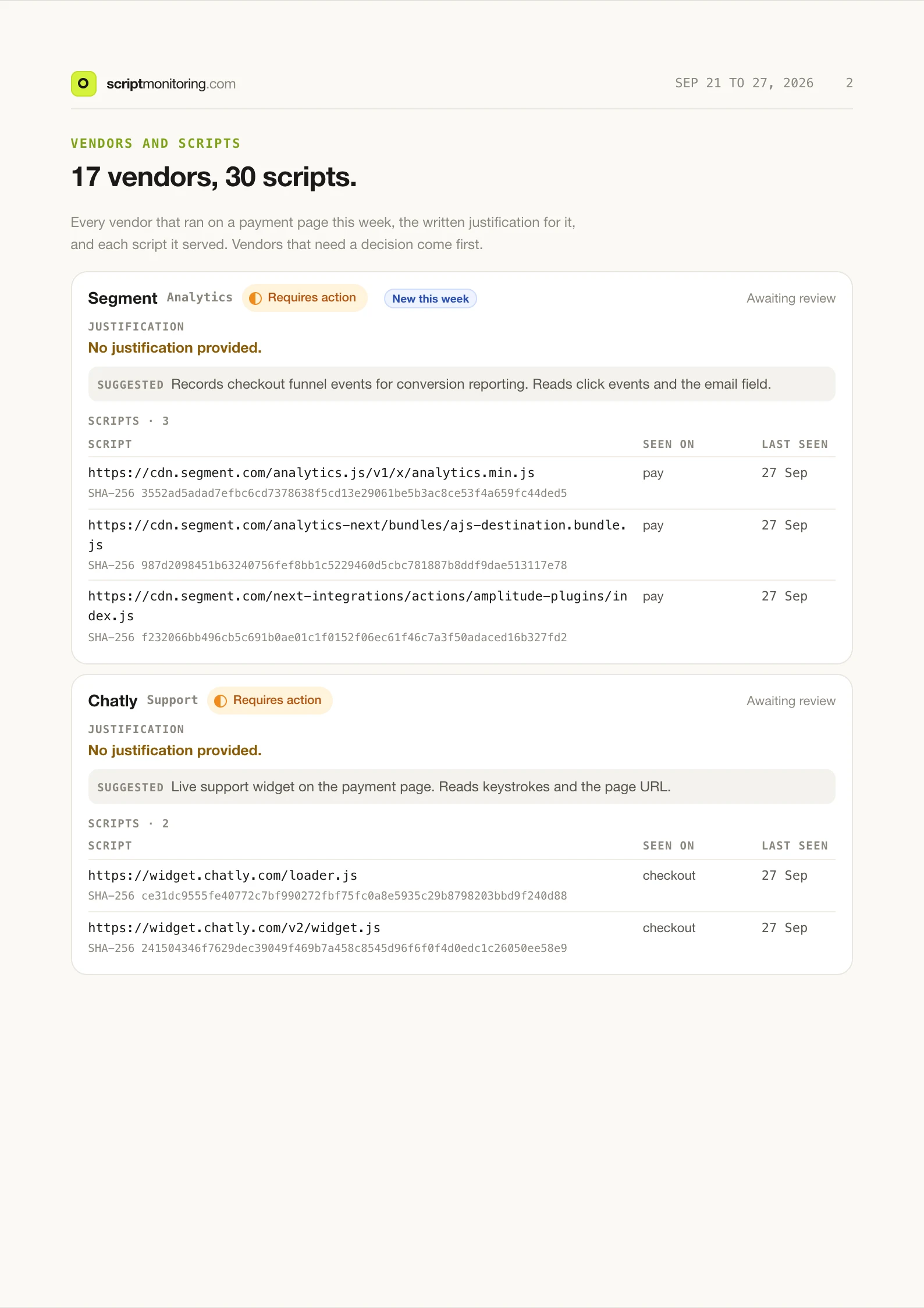
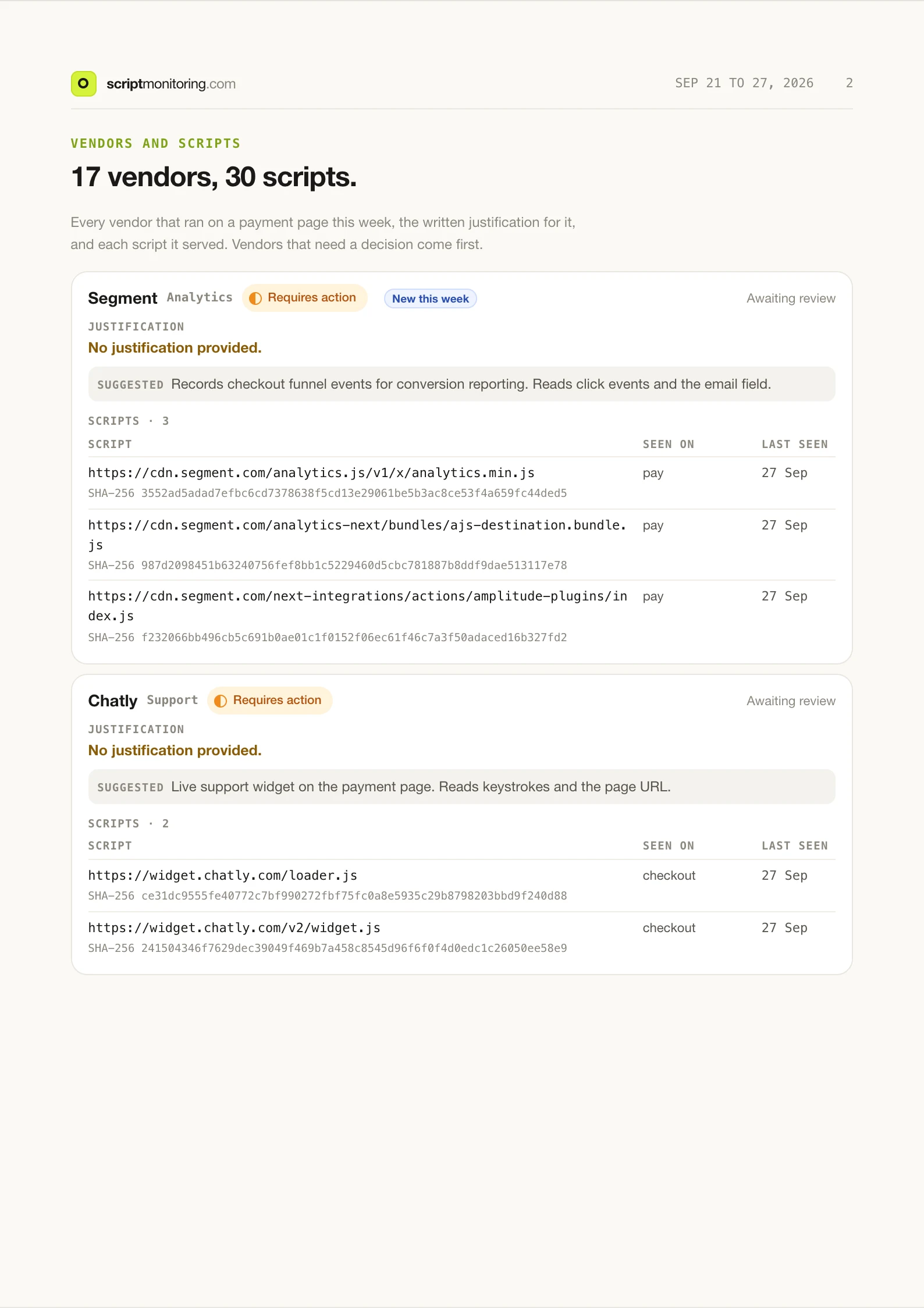
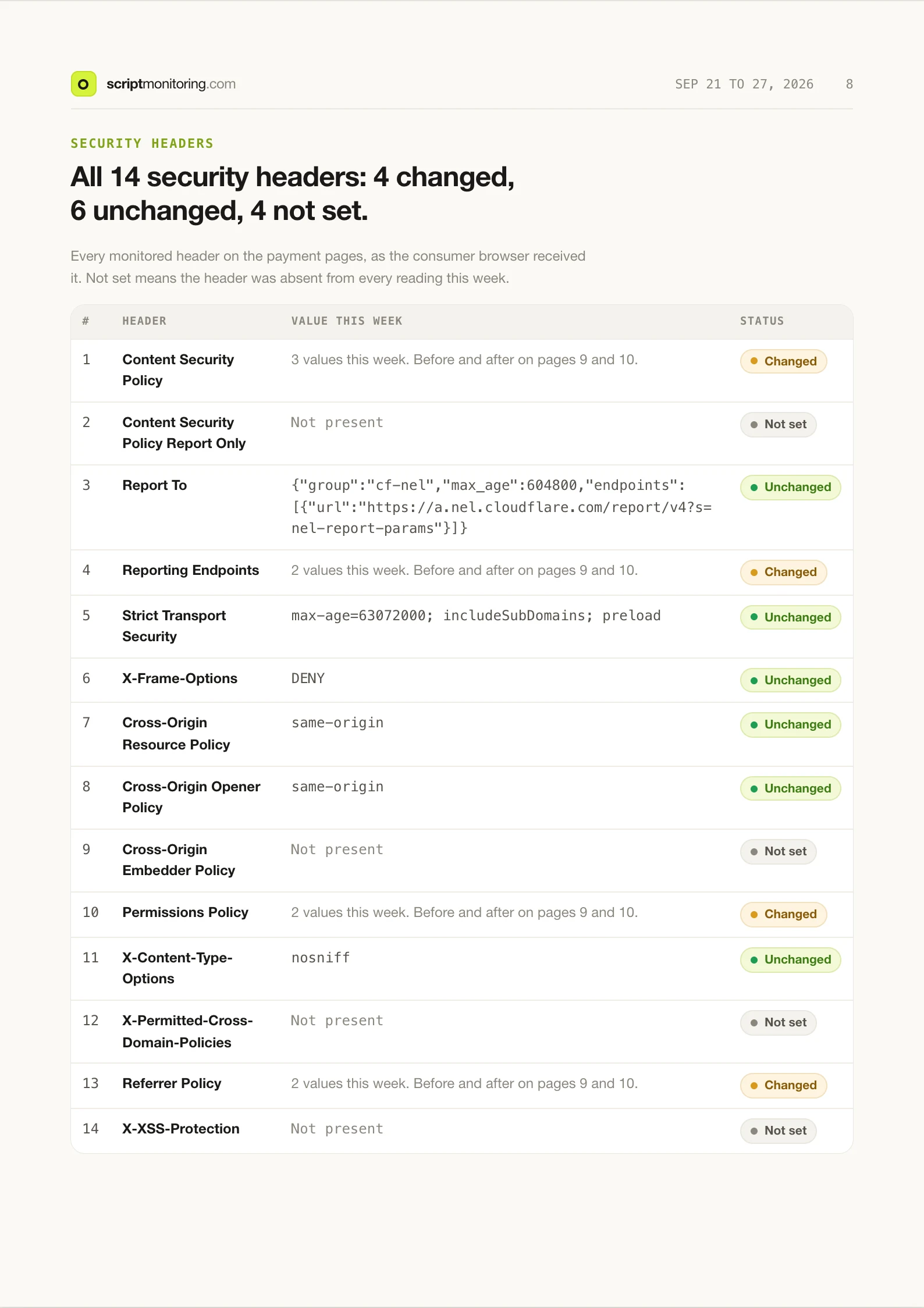
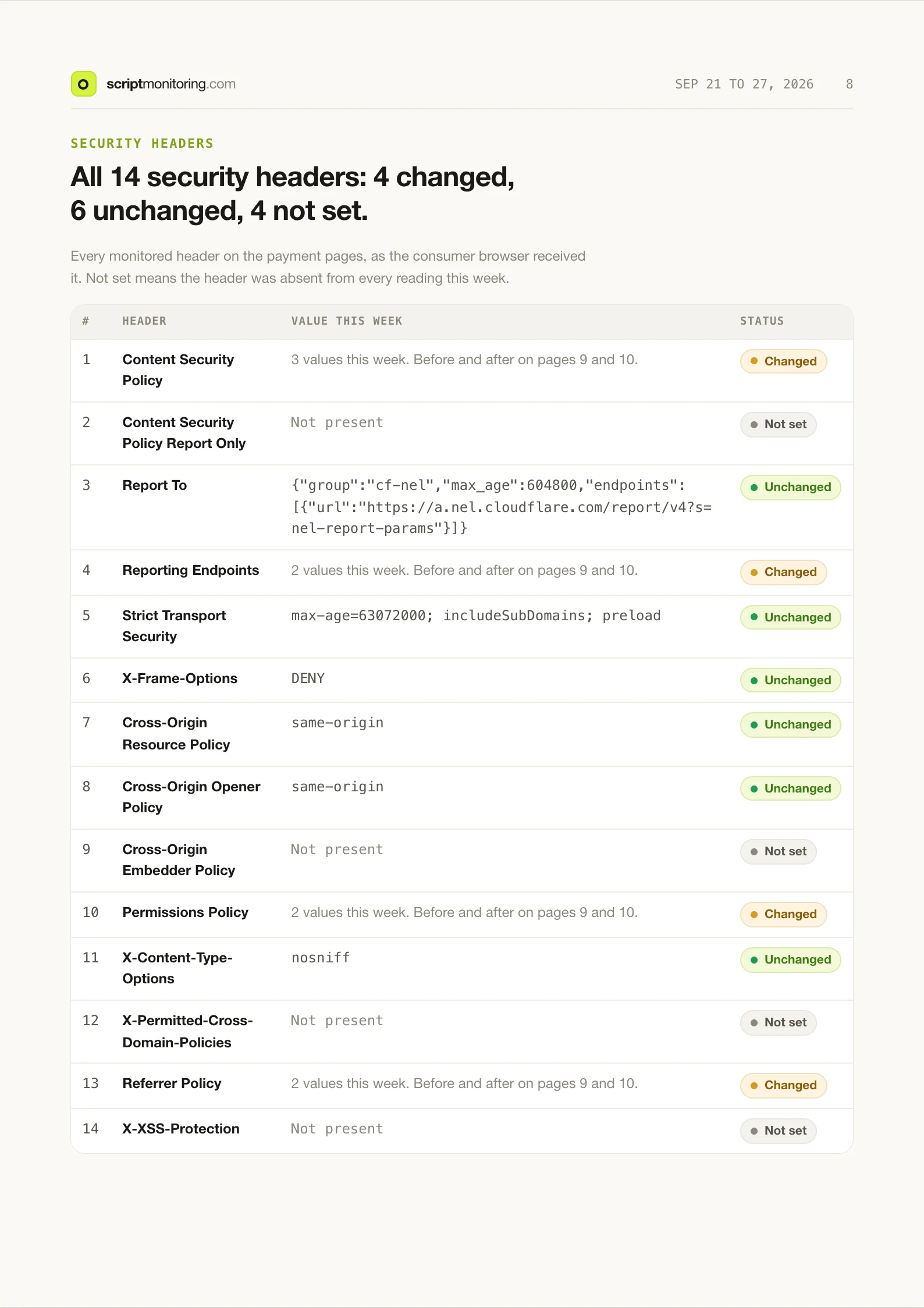
Click a page to open it full size, or download the full example evidence pack (PDF, 12 pages) to see every section, including the before and after values for each changed header. Every section is explained in the PCI DSS reference.
How do I keep the evidence current?#
- Turn on the PCI vendors need review and PCI evidence pack ready notifications: see Set up notifications.
- Review new vendors as they appear, so the Monday pack starts clean.
- When checkout routes change, update the selectors in Setup step 4 and check Payment pages monitored.
Frequently asked questions#
How do I give the report to my assessor?
The report opens in the dashboard. Use Print / Save as PDF to save a copy to send. Viewing a report needs a dashboard login and membership of the team.
Why can't I approve a vendor?
A vendor with open alerts cannot be approved until the alerts are resolved. You can still block it. Approval also needs a written justification.