Govern vendorsApprove or block a vendor
Approve or block a vendor
Review a vendor on the Vendors page, read its score, pages and PCI DSS status, then Allow it as approved or Block every resource it serves.
To decide on a vendor, open it from Security > Vendors, check what it does and where it runs, then Allow or Block it. One decision covers the whole vendor, and Alerts and your PCI DSS evidence use it. What each status and field means is on the Vendors reference.
How do I review a vendor?#
- Open Security > Vendors. Search with Search vendors…, pick a category, or look for Needs review badges.
- Click the row to open its details.
- Check Why it scored, Seen pages (is it on a payment page?) and What it does on the page.
- Decide:
- Allow if you expect it on your site. The toast has Undo.
- Block if you don't want it on your site at all. Enter a reason under Provide reason and click Block.
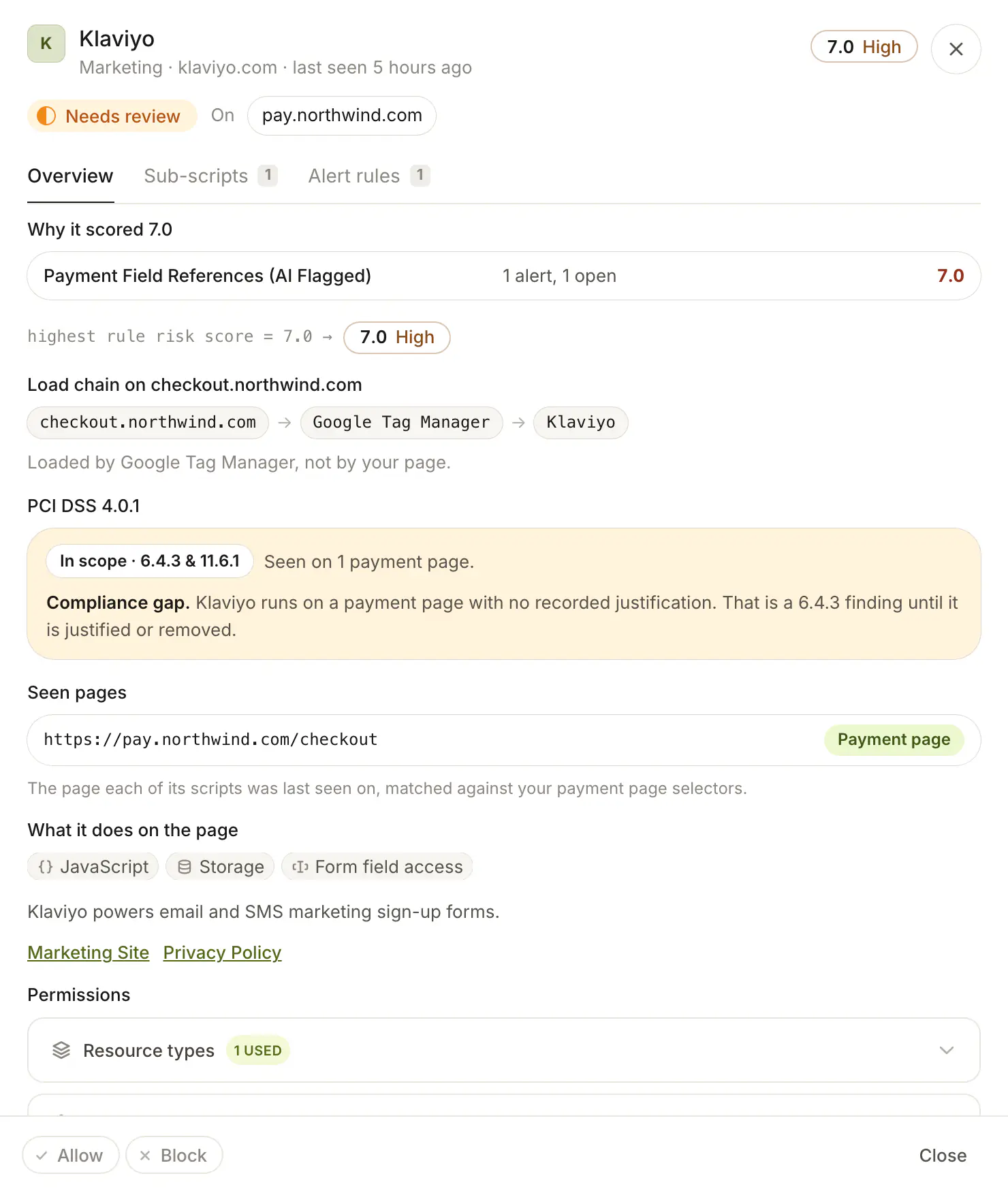
What if it runs on a payment page?#
Approving it for PCI DSS also needs a written justification on the Compliance page: see Prepare PCI DSS evidence.
Frequently asked questions#
Should I allow from Alerts or from Vendors?
If the vendor has open alerts, allow it from Security > Alerts: that also resolves the alerts. From Vendors, Allow approves the vendor, and it turns Approved once it has no open alerts.
I want to stop only one script, not the whole vendor.
Block from the alert, or add a rule for that script URL on Blocks.
How do I start a vendor's review over?
Use the row's menu (…) and Reset reviewed permissions.