Stop attacksRespond to a malicious script
Respond to a malicious script
What to do when Script Monitoring flags a malicious script: block it at the edge, check which pages it ran on, confirm the block and remove the source.
When Script Monitoring flags a malicious script, block it first and investigate second. A block from the alert stops the flagged scripts on every domain in your team in under 60 seconds, at the Script Monitoring edge, without a deploy on your side. Each step below links to the page that explains it.
Step 1: block it from the alert#
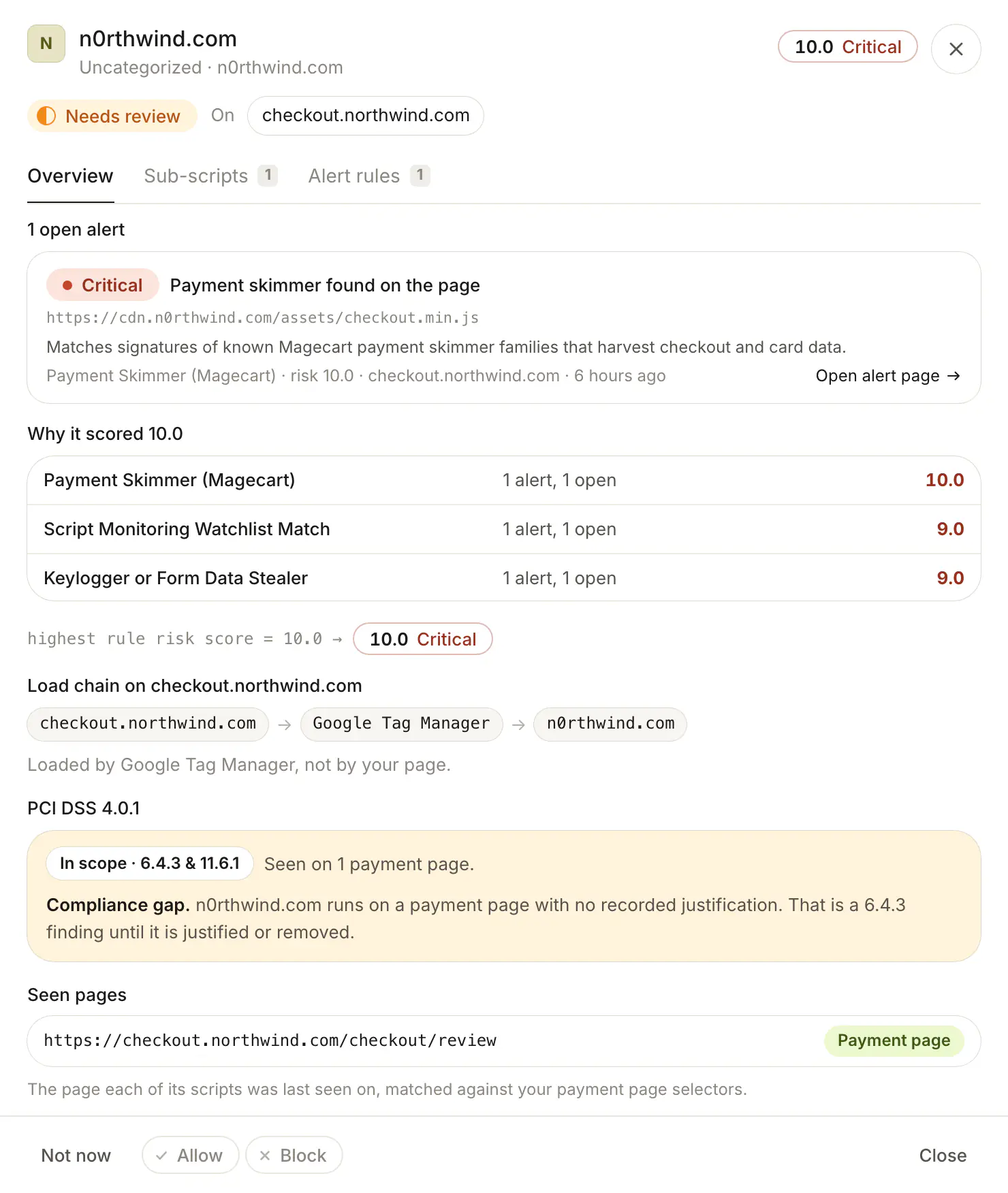
Open Security > Alerts, click Critical and open the decision. Read what happened and the script URL, then click Block and Block now. How the score and the three actions work: Alerts.
Step 2: check where it ran#
Open the vendor's details from the alert or from Security > Vendors. Seen pages marks each page as Payment page or Not a payment page, and the PCI DSS 4.0.1 section says whether it ran in scope: Vendors.
Step 3: confirm the block#
On Security > Blocks, the rule says Blocking once it has stopped a request: Blocks.
Step 4: remove the source#
A block stops the script from loading through Script Monitoring. Also remove the cause from your site: the tag, the compromised dependency or the tag manager entry that injects it. Keep the block until you are sure the source is gone, then lift it from Security > Blocks.
Frequently asked questions#
What if the script has no alert?
Add a block rule yourself on Security > Blocks with Block a script: see Blocks.
Who needs to know?
If the script ran on a payment page, involve whoever owns your PCI DSS incident response. The Malicious script detected notification can alert your team as soon as the rule fires: see Notifications.