# Install with an HTML script tag
> Paste the Script Monitoring script tag at the top of your site's head. Copy the snippet from Setup step 3, keep it synchronous, and add it to every page.
Source: https://docs.scriptmonitoring.com/install/html/ · Plan: All plans · Updated 2026-10-13
The HTML method is one line: paste the Script Monitoring tag at the top of the `` of every page, before any other script. It works on any site where you control the HTML, including single-page apps whose `index.html` you edit yourself.
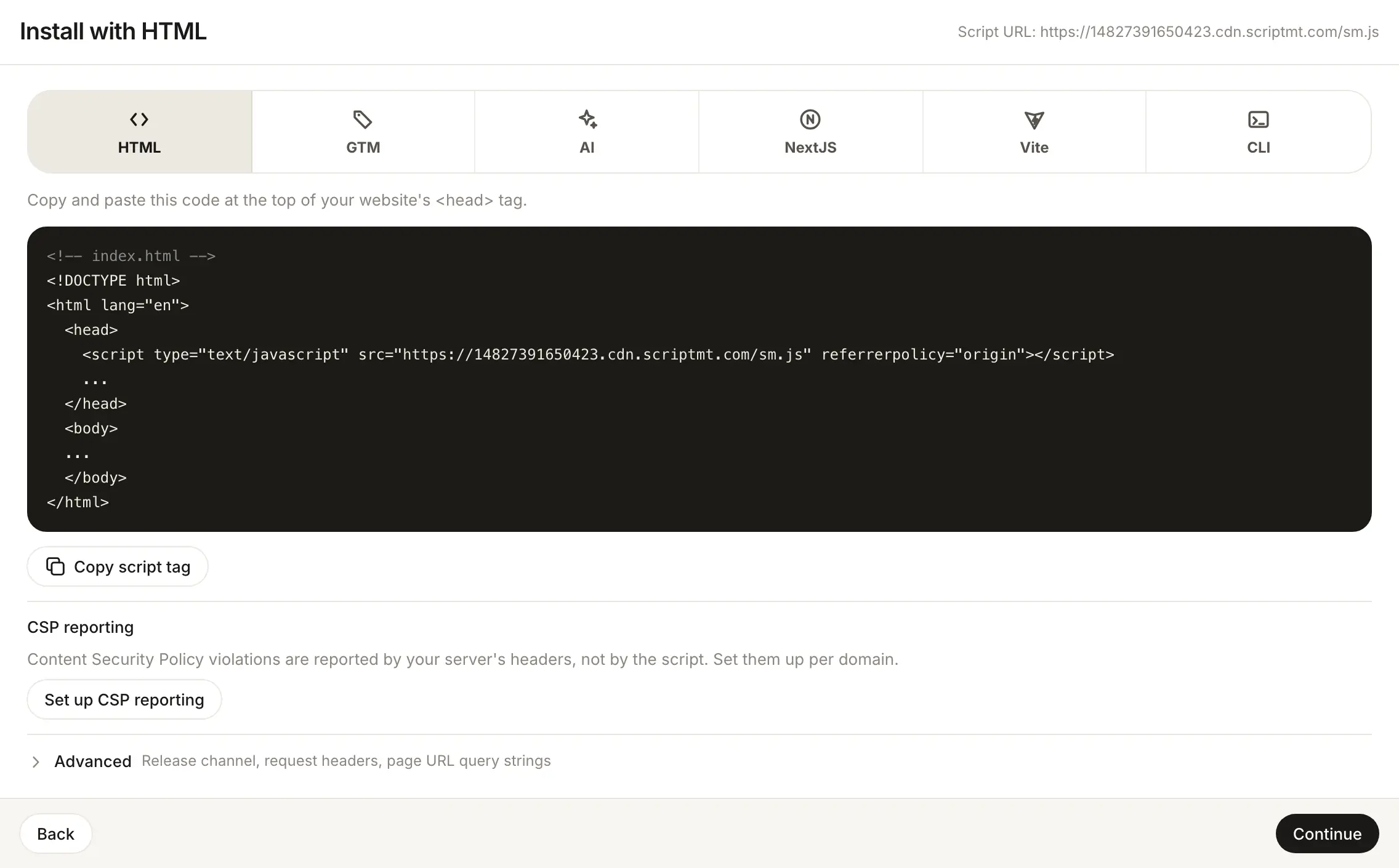
## How do I add the tag?
1. In the dashboard, open **Developers > Setup** and go to step 3, **Install**.
2. Pick **HTML**. The panel says: "Copy and paste this code at the top of your website's `` tag."
3. Click **Copy script tag**. It copies just the tag:
```html
```
4. Paste it as the first element inside `` on every page:
```html
...
...
```
5. Deploy, load a page on your site, and open step 5, **Verify**. See [Verify it's working](https://docs.scriptmonitoring.com/verify/).
`` is filled in for you when you copy from the dashboard.
Before you deploy, check the tag against the [placement rules](https://docs.scriptmonitoring.com/install/#where-on-the-page-does-the-tag-go): first in the ``, no `async` or `defer`, `referrerpolicy` kept. Tag managers, consent tools and analytics go below it.
**Having trouble seeing reports?**
Check the tag against the [placement rules](https://docs.scriptmonitoring.com/install/#where-on-the-page-does-the-tag-go), make sure the domain is listed under **Security > Domains**, then follow [Verify it's working](https://docs.scriptmonitoring.com/verify/).
## What if my team uses an immutable script?
Some teams have an immutable script, turned on by Script Monitoring staff. For those teams the HTML method shows the **Immutable script** panel instead of the snippet above: a script URL that never changes, with a Subresource Integrity value.
```html
```
Copy the exact tag from the panel (**Copy script tag**, **Copy URL**, **Copy integrity**) and place it at the top of the ``, synchronous, like the standard tag. Your site keeps the installed version until you replace the tag: configuration changes and script updates are adopted by installing a newly published URL and integrity value. **Refresh** only checks whether a newer version was published. It does not change your site.
## Frequently asked questions
### Do I need to change the tag when Script Monitoring ships a new script version?
No. The tag's URL serves the current release of your team's release channel (**Latest** or **Stable**, under Install > Advanced). Only an immutable script keeps the version you installed.
### Can I add it to a shared template instead of every page?
Yes. Put it in the layout or template that renders the `` for every page, as the first script. On a single-page app that is the HTML shell, usually `index.html`.
## Related
- [Install the script tag](https://docs.scriptmonitoring.com/install/)
- [Verify it's working](https://docs.scriptmonitoring.com/verify/)
- [Vite](https://docs.scriptmonitoring.com/install/vite/)