# Install with Google Tag Manager
> Add the Script Monitoring tag as a GTM Custom HTML tag on All Pages to test it quickly. For production, install the tag directly in the head.
Source: https://docs.scriptmonitoring.com/install/google-tag-manager/ · Plan: All plans · Updated 2026-10-13
You can install Script Monitoring as a Google Tag Manager **Custom HTML** tag that fires on **All Pages**. It is the fastest way to try Script Monitoring without a code change, but the dashboard marks it as for testing only: GTM does not guarantee script load order, so other scripts may run before the tag can watch them.
> **GTM installation is for testing only.** For production, add the tag directly at the top of the ``. See [HTML](https://docs.scriptmonitoring.com/install/html/).
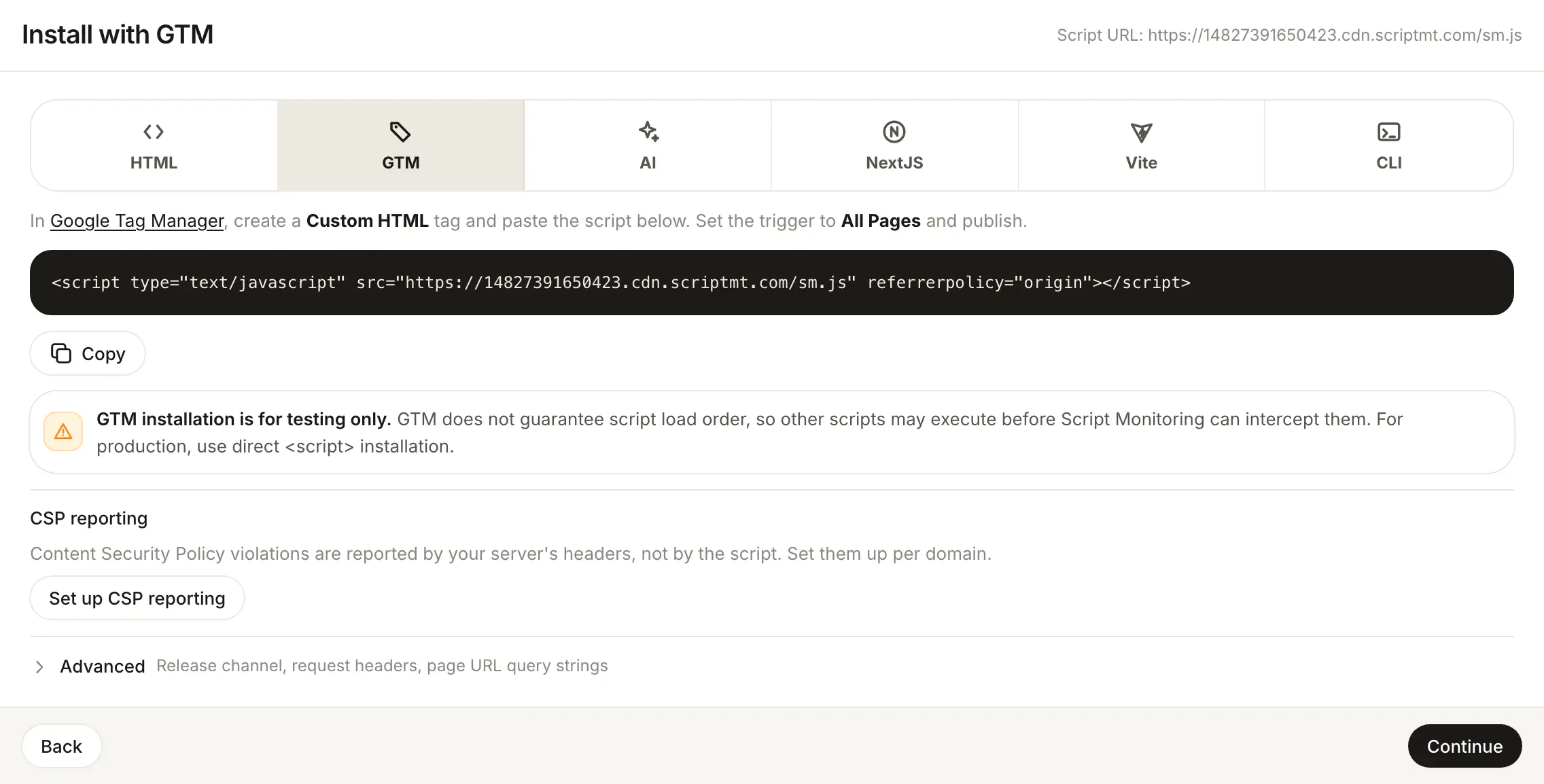
## How do I add the tag in GTM?
1. In the dashboard, open **Developers > Setup**, go to step 3, **Install**, and pick **GTM**.
2. Copy the script tag:
```html
```
3. In [Google Tag Manager](https://tagmanager.google.com/), create a new tag of type **Custom HTML** and paste the script tag.
4. Set the trigger to **All Pages**.
5. Save and **Publish** the container.
6. Load a page on your site and open Setup step 5, **Verify**. See [Verify it's working](https://docs.scriptmonitoring.com/verify/).
## What does GTM miss?
The GTM container itself loads as a script, and it decides when its tags run. Anything that starts before the Custom HTML tag fires, including scripts in your HTML above the container and scripts the container loads first, can run before Script Monitoring is watching. On a single-page app it is worse: the container loads after your bundle, so scripts your app injects at mount can run first.
## What should I do once testing is done?
Install the tag directly with [HTML](https://docs.scriptmonitoring.com/install/html/), [Next.js](https://docs.scriptmonitoring.com/install/nextjs/), [Vite](https://docs.scriptmonitoring.com/install/vite/) or the [CLI](https://docs.scriptmonitoring.com/install/cli/), then pause the GTM tag so the script is not loaded twice.
## Frequently asked questions
### Why is GTM only for testing?
GTM does not guarantee script load order, so other scripts may execute before Script Monitoring can watch them. For production, use direct `